eM Client offers a wide range of settings that allow users to customize even the most technical details under the hood and tailor the program to their preference.
To access Settings, click Menuat the top and then select the Settings... option from its drop-down menu.
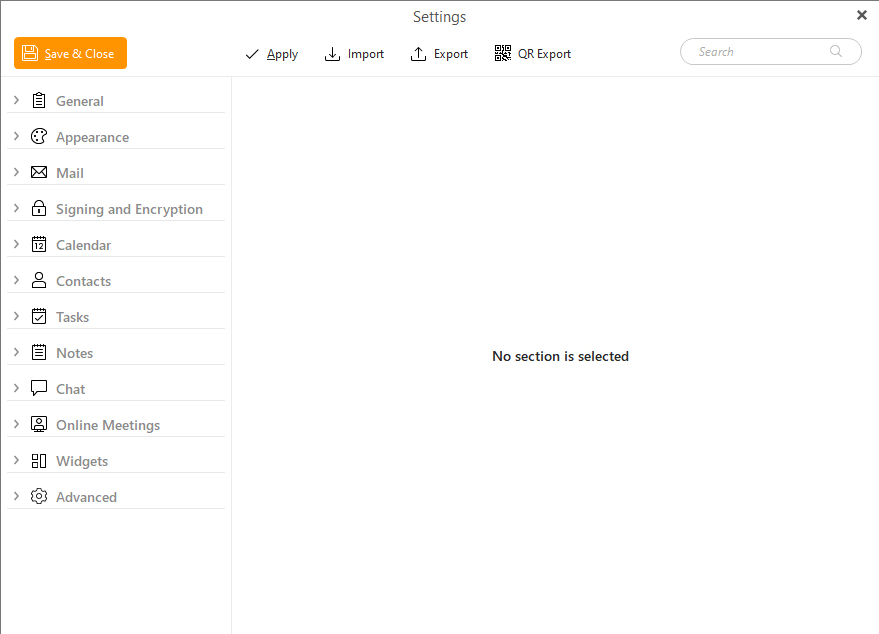
The Settings window:
In the top menu, you have the Save & Close button on the left side to save any changes made to the Settings.
The Apply button can be used to save any changes you made, the difference is that you will see the new changes but the Settings window will stay open.
Import and Export can be used to import and export these settings from/into a XML file for import/export into different eM Client app on another device.
QR Export is used primarily tp export your data into mobile devices - read more about this feature here.
On the right side you have a Search filed that can be used to easily find specific settings if you are not sure which section to look into.
Settings are divided into 12 sections, while each of the sections contains several subsections to make it easy to customize the app.
You can switch between these sections and subsections by clicking on the bookmarks in the left-most vertical panel of the Settings window. When you click on any of these bookmarks, the central panel of the window will change and it will display the settings of the selected section.