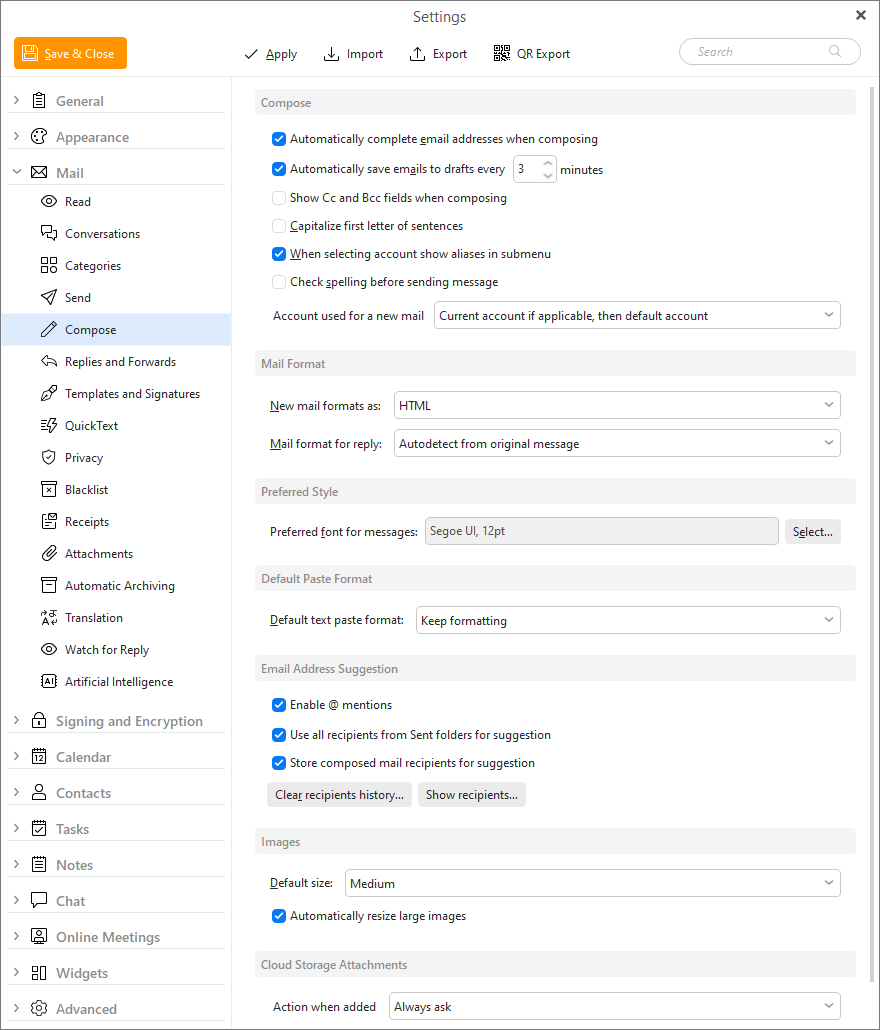
Compose section enables you to adjust the email lookout.
Check this box to let the application attempt an auto-completion of the email address you are typing in.
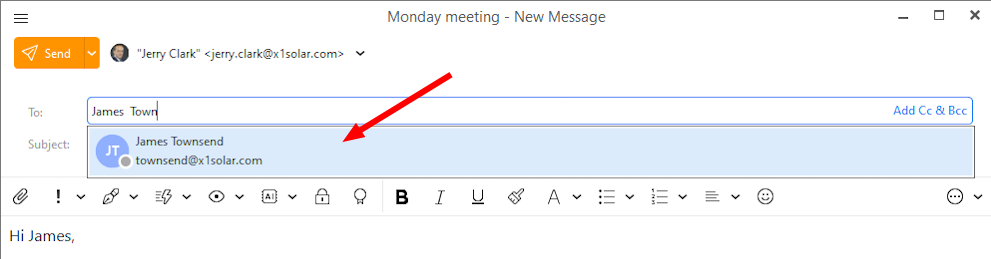
This function enables you to quickly insert the receiver's address when composing a new email. Simply type the first few letters of the desired receiver's address into the email's To: field and the application will display a list of all the contacts from your address book whose email addresses begin with what you have typed in.
Check this box to have the application periodically save the email message you are currently composing in the Drafts folder. Thus if you are interrupted while writing an email, you can recover the unfinished email from the Drafts folder.
In the numeric field you can specify how often the application saves your unfinished email.
By checking or un-checking this field you can show/hide the CC and BCC fields in the message window when you are composing a message.
This utility works on a principle that every first letter of a new sentence will be automatically capitalized. (This can basically save your time, in means that you do not have to pay attention whether you have written capital letter at the beginning of a new sentence or not.)
With this setting aliases are shown in a separate menu under the specific account. With this setting disabled, all addresses are shown in one list.
With this option the Spell-check window will pop up after you hit Send if there is any misspelling in your text. If there is none, the message will be sent immediately.
This setting helps specify which email account should be pre-selected in the From field when a New message window is opened
You can set a permanent mail format for your new messages. Choose from the two following options:
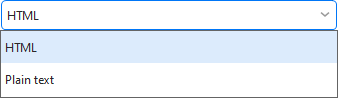
You can choose between HTML or Plain text emails. A HTML email can retain any customized formatting that you apply to your email (font, colors...), a plain text email will contain only the text with no colors, font and so forth.
You can also set a permanent mail format for your reply messages. Choose from three options:
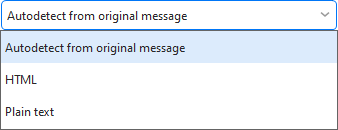
You can choose between HTML or Plain text emails. A HTML email can retain any customized formatting that you apply to your email (font, colors...), a plain text email will contain only the text with no colors, font and so forth. You can also use the utility to auto-detect the format from the original message.
Here you can define the preferred font, font style and size that you want to be used automatically when you are composing a message.
Here you can define the default format for pasting content - either keep the formatting of the original, or keep just the text in plain format.
Enable @ mentions - type @ and then start typing name or address of a contact - eM Client will suggest people to mention in your email or chat message.
Use all recipients from Sent folders for suggestion - all recipients from your sent emails are used for email suggestion when writing a new email.
Store composed mail recipients for suggestions - with this option enabled eM Client will save addresses into recipients history list, including how often you send emails to specific emails. This way the suggestion can be more relevant and offer more often used contacts first.
Clear recipient history... - this button will delete all items in the saved recipients history
Show recipients... - this button will open the list with the currently saved emails in recipients history - it can be used to save them to contacts or clear out specific items from suggestions
Suggest emojis based on text after typing colon - this setting enabled or disabled the pop-up suggestion window for emojis/emoticons
Search text must be at least 2 characters long - this option stops the suggestion for emoji to pop up unless you write at least 2 characters after the colon
Suggest recently used emojis after typing colon - if you have favorite emojis this option can help you insert them quickly
This settings sets what should happen when you add a file from recognized Cloud Attachment Storage.
You can either have the program Always Ask how the attachment should be added, Add it as shareable link or Add as regular attachment.