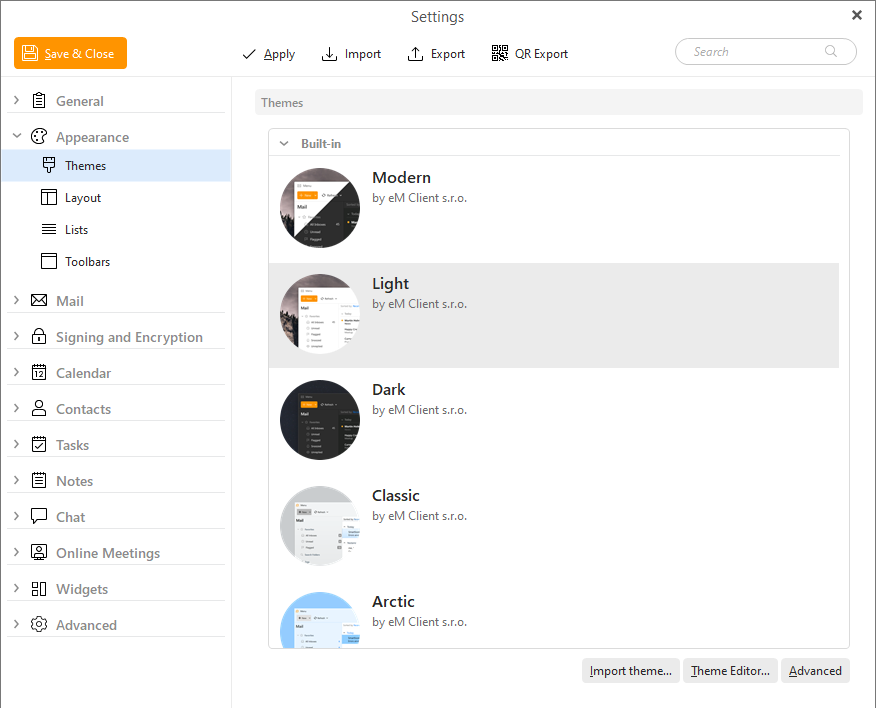
In this menu, you can adjust the look of the user interface - you can choose among the default themes Modern, Light, Dark, Classic, Arctic, Mystic, Pink, Bordeaux, System, Red Effect, Blue Light, Aqua, Industry, Yellow Jacket, Green, Rose, and Viola themes, create a new theme via Theme Editor based on existing theme or color, or import any custom theme from a file with .emtheme extension.
The bottom of the window allows 3 options:
Import a custom theme file with .emtheme file type, either one you created or edited, or one downloaded from our Theme Gallery.
This is a tool you can use to create or edit themes. You can also reach it via Menu > Tools > Theme Editor menu.
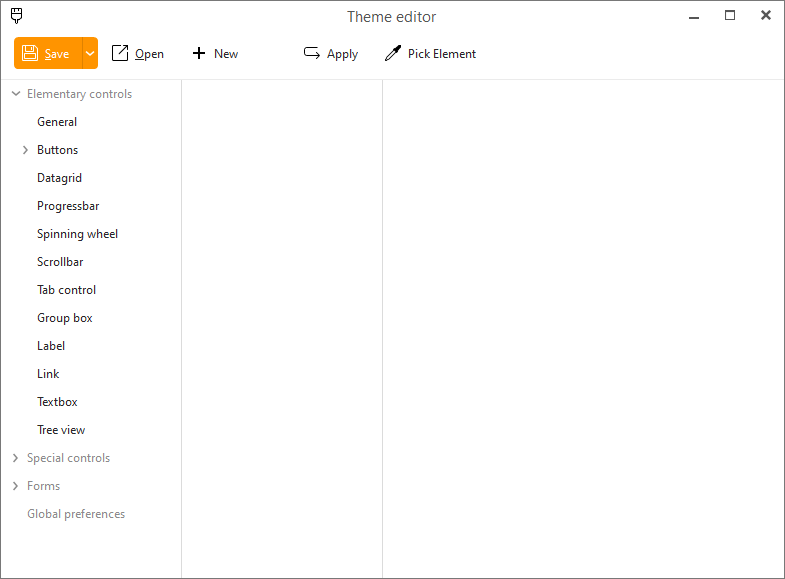
The save button allows you to save changes you made to your theme or save the theme into a new file with the 'Save as' option.
Open an existing .emtheme file for futher edits.
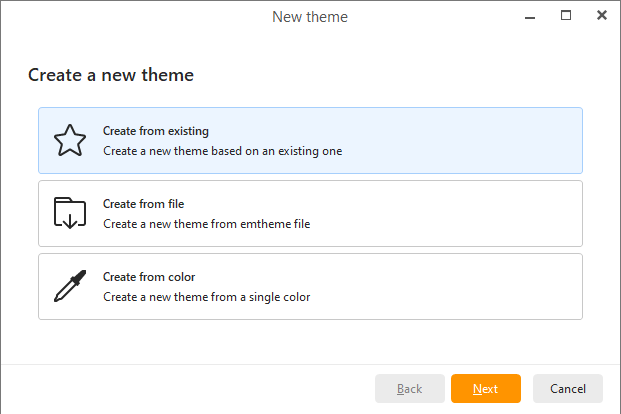
Create a new theme, you will be able to make one from default themes using the Create from existing option, Create from file based on an existing .emtheme file or Create from color, which will automatically create a whole theme based on the color you pick from the color wheel. You can then tweak details using the options in the left pane of the Theme editor window.
Apply the changes you made in the Theme editor to the actual app - this way you can preview what your current changes look like and you can keep editing or check if everything looks good.
If you need to edit a specific part of the app but cannot find the correct section in the left pane, you can use this tool to click on the main app window and the Theme editor will take you to the correct section.
The left pane you can go through the list of options to customize specific elements of the user interface. The panel on the right will show you preview of which type of element you're editing and you can see the changes to these specific details.
This button contains additional options for the Themes settings.
By clicking on the Advanced button following context menu will appear:
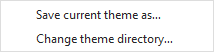
You can Save current theme as(however modified) into a file by clicking the appropriate option. You can later customize this file by means of simple XML editing or open the file in Theme editor.
Change theme directory... changes the folder in which the theme files are saved.