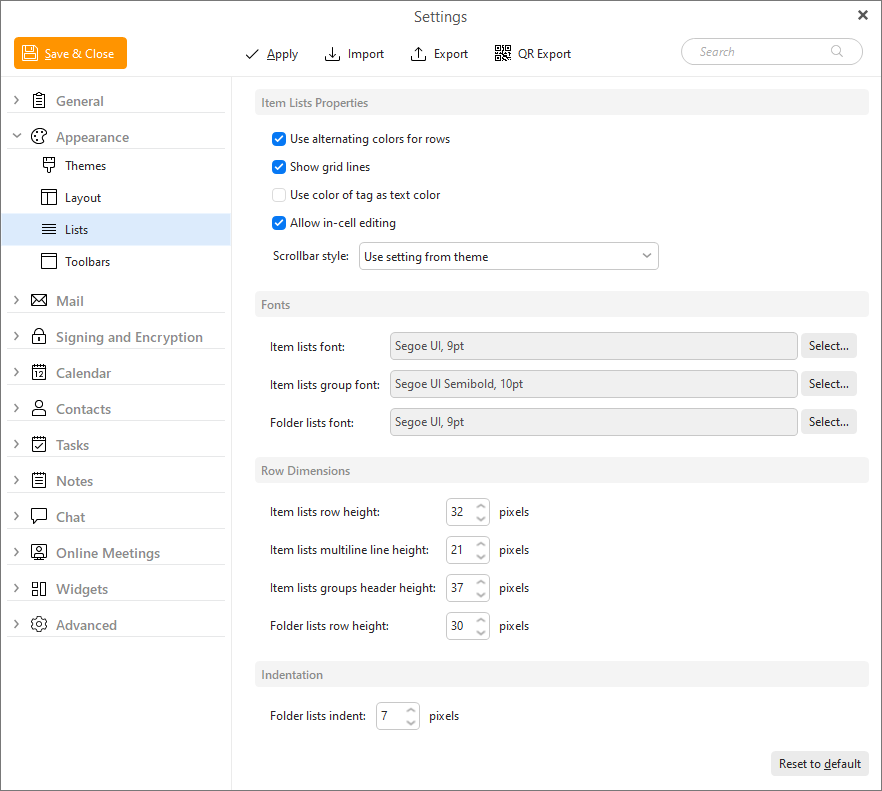
In this menu you can specify the appearance settings for the individual parts of the application. The changes you will make here will show in following parts of the application: General, Mail, Calendar, Tasks, Contacts, Sidebar. Using these options you can customize the appearance so that it fits your personal preferences.
The settings and options you choose here will affect the appearance of the information displayed in all parts of the application (in messages, calendar etc.)
Use alternating colors for rows - if checked, the messages in the list will be displayed on a background of alternating colors.
Show grid in list - by checking/unchecking this option, you can show/hide a grid in the list of messages. This grid is more visible if you uncheck the previous option.
Use color of tag as text color - by checking this option you can choose if you would like to display the text of an entry in the same color as is the entry's tag in which it is classified.
Allow in-cell editing - this option applies for editing in main window. If checked, you will be able to edit the parameters of the items (contacts, events, tasks) inside the appropriate cell.
Scrollbar style - instead of using themes, you can now manually switch the scrollbar style in settings:
Item lists font: Font for the items listed in the lists for the given items - emails, events in Agenda, etc.
Item lists group font: Font for the group in the list, such as 'Today' 'Yesterday' in emails when emails are grouped by received date.
Folder list font: Font for the folder list on the left side.
Item lists row height: Row height for the items in the lists in single-line layout.
Item lists multiline line height: Row height when Compact version of the mail list is used
Item lists group header height: Row height for the group header.
Folder lists row height: Row height for the folder list on the left side
Folder lists indent: Set the indent of the folder list for subfolders in pixels.
The Reset to default button will change all settings in this section to the default amounts.