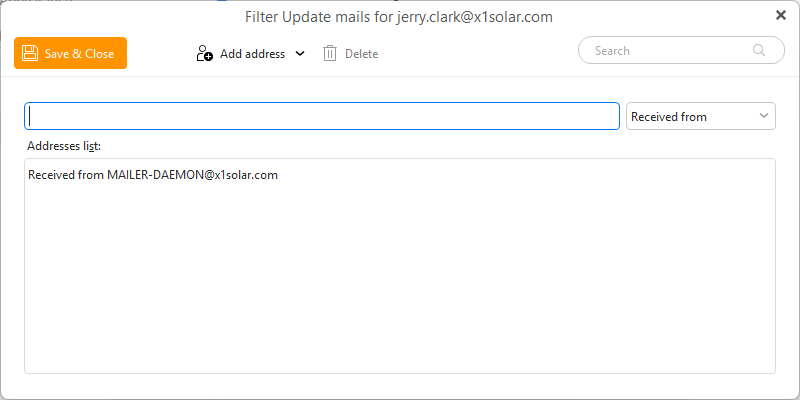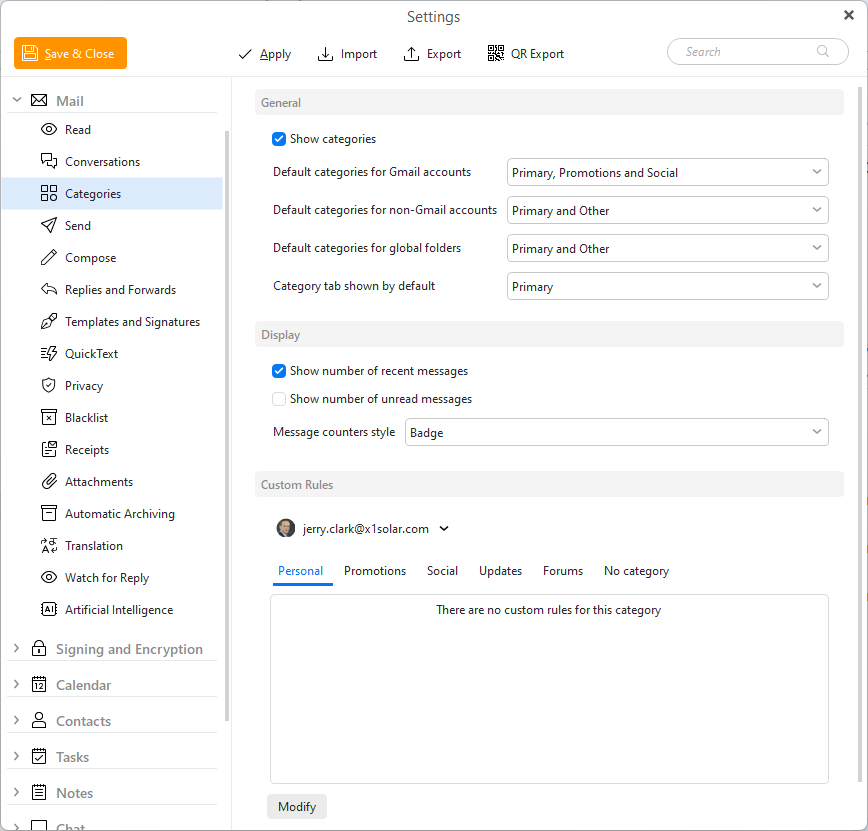
In the Categories setting you can enable or disable the feature, specify which categories go where and also manage your rules for assigning specific categories.
Go to this section to read about how to use Inbox Categories.
Show Categories - if you uncheck this option the category tabs will be hidden from all sections of the app. If you want to use the categories in just selected Inboxes, you can make that decision per each account in that specific Inbox folder, reach more in the feature description here.
Default categories for Gmail accounts - tabs that will be visible for any Gmail and Google Workspace accounts
Default categories for non-Gmail accounts - tabs visible for all other account types
Default categories for global folders - tabs visible for Favorite folders such as All Inboxes
Each of these has these customization options:
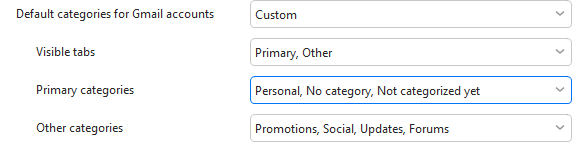
Category tab shown by default - this will be the tab that is shown when you open your Inbox.
The default option is Primary, but it can be also be All, Promotions, Social, Updates, Forums or Other.
Show number of recent messages
Show number of unread messages
Message counters style - this can either be
In this section is an Account selector since the custom rules for Inbox categories are always for that specific account.
Below you can see rules for each of the specific account and category - click Modify to add or remove addresses from specific category rules.