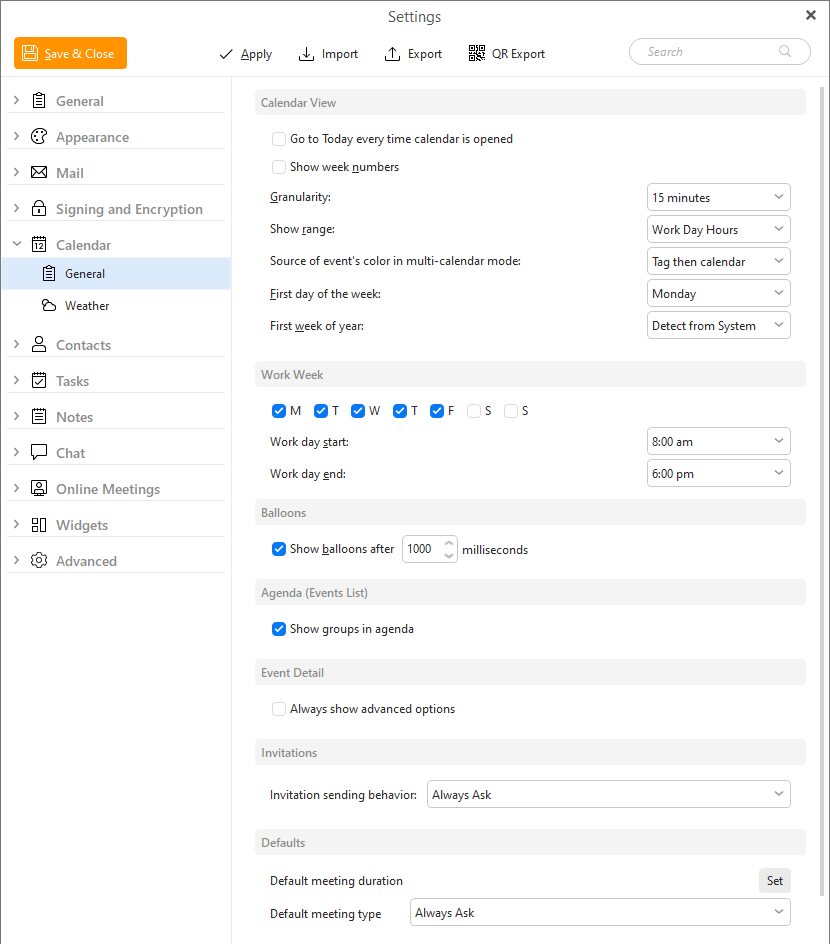
You can access the calendar's settings by right-clicking anywhere on the calendar's main panel and selecting Calendar Preferences from the context menu, or by selecting Menu > Settings from the main program window and selecting the Calendar section in the Settings window.
The Calendar Settings window consists of seven sub-sections: Calendar View, Work Week, Balloons, Agenda (Events List), Event Detail, Invitations and Defaults.
If you check this option, then the current day will always be in focus when you open the calendar section.
If you check this option, there will always be displayed a number of the week according to the current year in the month view of the calendar.
This option allows you to choose the granularity of the day and week view layouts.
The days are divided into hours by default. If you want to plan your time more accurately, you can split the hours into slices of 5, 10, 15, 20 or 30 minutes. This time unit is important when you are moving and resizing events by Drag & Dropping event boxes because you can't adjust the events by smaller time units than defined here.
This option allows you to set the "height" of your calendar's layout. The value specified in this field determines how many hours will be visible at one time in the calendar's central panel.
So, if you set 24 hours in this field, you won't have to scroll at all in your calendar's central panel, leaving you plenty of room for your nocturnal activities.
You can define the source of the color of an event while you are in multi-calendar mode. This option is there for a case when you are working with more than one calendar. You have three options:
Set which day starts off your week.
Set the first week of the year, so the week numbers in the app match your preference - default is to Detect from system, but you can manually change it to week which includes January 1st, first 4-day week or first full week.
In this section, you can define the parameters of the work week. When it starts, when it ends and which days it contains.
In this panel you can define the behavior of the popup balloons which appear when you hover the mouse pointer over an event box. These balloons contain the events' info.
You can learn more about Balloons in the Calendar Views section.
Check Show groups in agenda to have groups displayed also in Agenda (Events list)
By default, event creation window shows just few basic fields. With this option, all fields will always be visible.
Set default behavior for the event invitations, either always ask if the invite should be sent or not, always send it or never send one out.
In this panel you can set default meeting length. Consequently select whether you want to apply it to all folders or only to the selected ones.
You can also set default meeting type, depending if you create more Online meetings or Standard events - but you can always have the program ask each time.