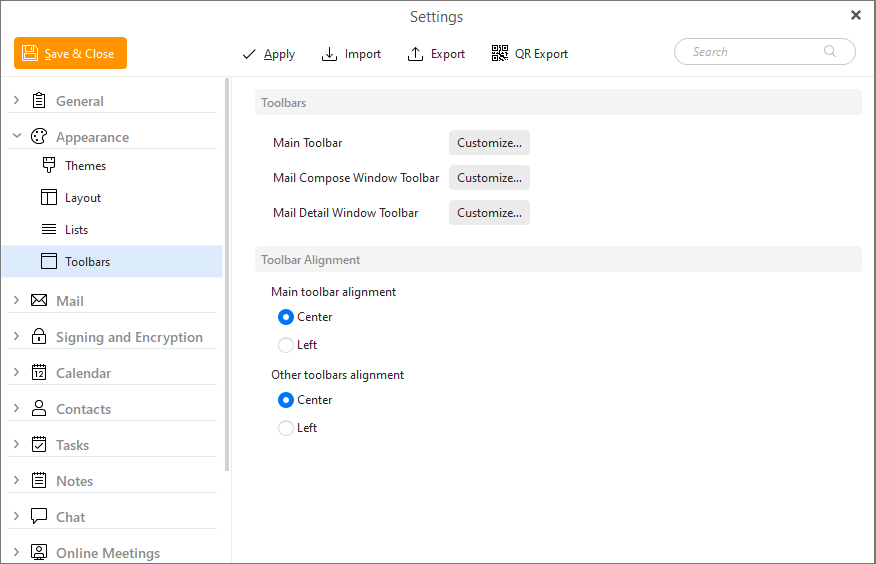
There are many toolbars which exist in eM Client and some of them (especially for Mail) have so many available options that we let users customize them to fit their specific needs.
This is the Main Toolbar that appears at the top of the Mail View in eM Client.

By clicking Customize… you can change which buttons appear in this toolbar and in what order. The options are a bit different in other sections, but each one can be customized.
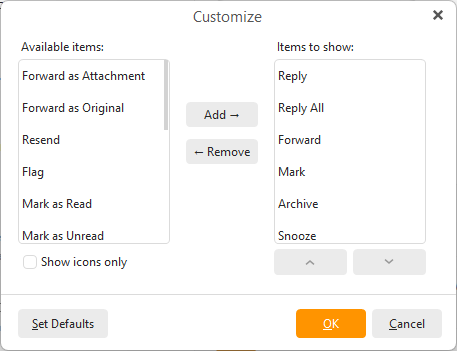
The Show icons only option will hide the text of the buttons, so you can fit more features on the toolbar. You can hover over the buttons to have the title pop up.
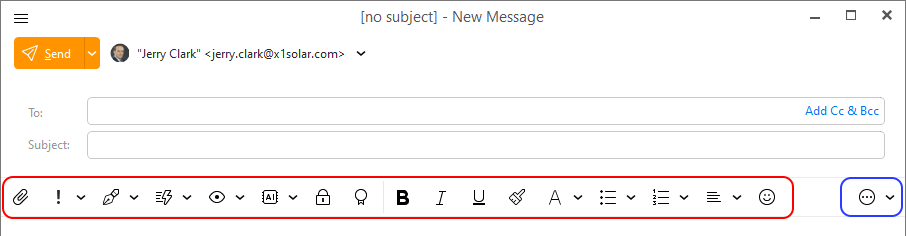
This is the toolbar which appears when you are writing an email to enable you to quickly change things about the email message, such as adding formatting (Bold, Italic, Underline) or adding an attachment.
By clicking Customize… you can change which buttons appear in this toolbar and in what order. All the options which you don’t pick to be included in this toolbar can still be accessed by clicking on the … button on the far right side of the compose message window.
This is the toolbar which appears at the top of the message window when you open an email. It’s similar to the Main Toolbar for Mail, but has some added options such as moving to the previous/next message in the folder to open another email. By clicking Customize… you can change which buttons appear in this toolbar and in what order.

Main toolbar alignment
This lets you choose if the Main Toolbars which appear at the top of the page should be aligned towards the left or center.
Other toolbars alignment
This lets you choose if the other toolbars (besides the Main Toolbars) that appear at the top of a window should appear at the center or left side of the window.