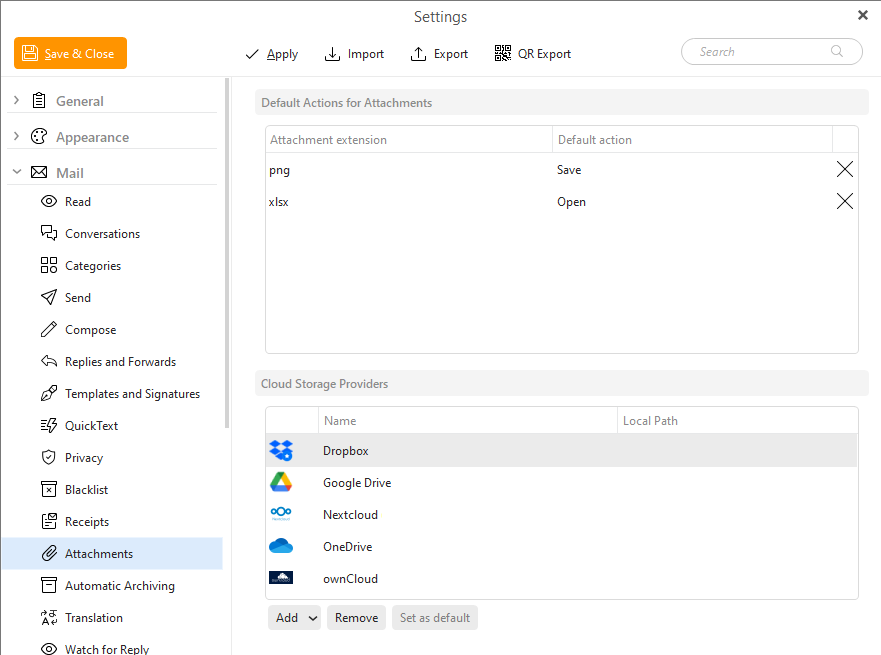
In the Attachments settings you can set default actions for received files as well as specify your settings for attachments saved in Cloud storage.
Here you can delete predefined actions that you have set up for various attachment file types. Delete the predefined action by clicking on the cross icon:
eM Client currently supports these cloud storage providers:
IMPORTANT: To use these services in eM Client, you first need to install the cloud storage application of the provider on your computer.
You can add these services by going to Menu > Settings > Mail > Attachments and clicking the Add button. You will then select the provider.

Add, Remove and Set as default buttons for Service providers.
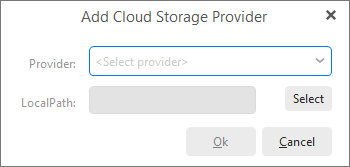
Add Cloud storage set up
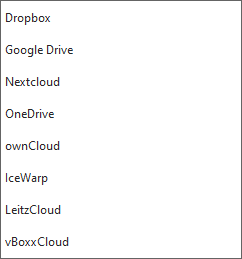
Cloud Provider selection.
The first time you use cloud storage in eM Client on your device, you will be asked to log in to the service and give consent for the eM Client to access the service. Depending on the selected service, the login will appear differently.
To remove a cloud storage service, simply go to Menu > Settings > Mail > Attachments > Select the service > Remove
If you add a large file (>10mb) into an mail and try to send it, eM Client will ask if you would like to upload the file to a cloud service.