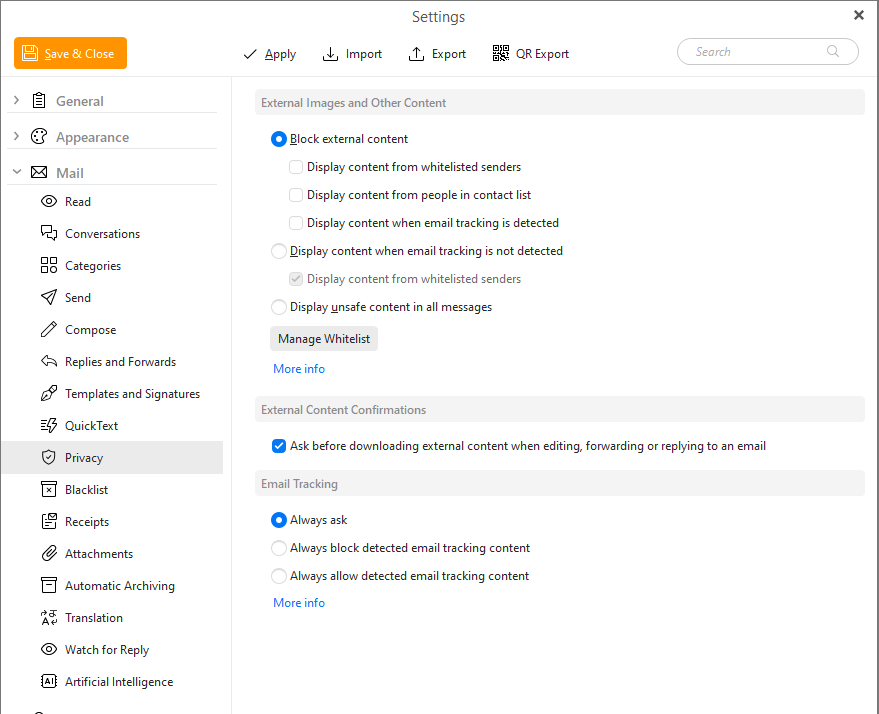
In this section you can customize the settings concerning the privacy and potentially unsafe content in received messages.
External Images and Other Content are objects in an email that are not directly a part of the email, but that are downloaded from an external source once you open the message. Inside the given message there is only a link that will give instructions to your internet browser or email client to download and then display this external content, which can be an image, sound, video or any other file linked to an external server or even a script or code that once downloaded and executed, could compromise your security.
This method can be used to track if you have opened the particular email, since downloading the external content will cause a connection to a specific mail server that the sender can be tracking. This action is not always malicious, but can be misused by spammers to check if your email address is still in use and by getting this confirmation of the email being read they can send you more unwanted messages or share your email address to other third parties for profit.
Tracking pixels which are used for Email Tracking can be part of this external content are able to show your actual IP address every time you open the message and nowadays with GeoIP services that means that the sender can find out your location very accurately, down to the street or even a building you were in at the time, opening you up to dangers not only online but in real life as well.
If you deactivate external content, some messages may not look as they were designed by the sender, since the pictures or custom fonts are missing. However, this will most likely only affect commercial emails, as this method is rarely used in private email conversations. In most cases, the blocked content will be a logo or style sheet, adding prettier visuals but not content, so you won't miss much by not downloading it. In the case of advertisements that are all images, you can opt to download the content when the message subject or text in the body is interesting enough to convince you that the blocked content is worth reading.
When there are any external images or content in the message, you will see this confirmation in the information bar under the message header:

Download pictures or always download pictures from this sender. To preserve privacy, external content was not downloaded.
Block external content
This option will block all external content by default. There are exceptions that can be set for this option, since it’s quite a finite one:
- Display content from safe senders
With this option you can block everything but content from senders in your Safe Sender list - which is a list of senders you can curate by adding trusted contacts into it via the option to 'always download pictures from this sender' in the information bar under the message header. Using the Manage Safe Senders... button you can view and remove any contacts in you change your mind.
- Display content from people in contact list
This option will use all addresses in your contact list as an automatic Safe Senders list. This can be useful when you curate your contacts and keep only trusted senders in them, but some email providers with synchronized address books can add some emails to your list automatically when you respond to them, so keep this in mind before using this option or check to see if this feature is present and desirable for your purposes.
- Display content when email tracking is detected
Leaving this option unchecked will allow you to download all external content but leave out the parts that eM Client detected are used for email tracking. Since it is rare that all images, links and other details in a single email are used for tracking, this option can make it easier to read the message in full but keep your privacy protected. If you enable it, items that are used for mail tracking will be downloaded automatically.
Display content when email tracking is not detected
This option will download external images and content only for emails that are not showing any signs of email tracking elements, which makes it less likely that the message is used for marketing or spam.
Display unsafe content in all messages
This option will automatically download and show all external content, no matter who it is from or if it contains any email tracking elements. It is the least secure option.
Ask before downloading external content when editing, forwarding or replying to email.
Using the checkbox for this option to you can enable or disable the warning in the information bar. If you are set to either never or always display this content, then hiding this confirmation can save you some space in the message detail section of eM Client.
Email tracking is a method of email delivery monitoring. It allows the sender to get a notification or log of the time the email is opened and viewed by the recipient. Unlike with Read receipts which only send one confirmation that the email has been opened (and is usually purely optional), email tracking can provide details such as which app the email was opened in, if it was a phone or a PC, or even details about your actual location, IP address and other personal details about you and your device, so it’s a bit more invasive and you should be able to choose whether you want to share such data or not.
That is why eM Client now offers options to block Email Tracking in the mail privacy setting and if detected, will not by default download any content that could be used to track you.
You will see this confirmation in the information bar under the message header:

The setting options for this feature are as follows:
Always ask
With this option, you will always be asked if you want to have your emails tracked each time a mail tracking pixel is detected in a message. The option to allow download of the mail tracking pixel will be offered in the information bar under the message header in the message detail view. The tracking pixel is of course not downloaded until you confirm the choice.
This allows you to filter out which emails you want to load fully or keep the tracking pixel blocked.
Always block detected email tracking content
With this option, email tracking will automatically be blocked, and you won’t be asked if you would like to allow or restrict email tracking for any message. This can save up space when viewing the message as the information bar will not pop-up, but you won’t be able to easily change your mind about it.
Always allow detected email tracking content
By selecting this option, email tracking will automatically be allowed so all detected tracking pixels will be downloaded, so the sender will get all information about the tracking each time the message is opened.
These custom options for Mail tracking are available in paid version of the program, but free versions can keep tracking pixels blocked using the general option to block all external content.