The work at eM Client never stops, and today we're proud to share our biggest release yet.
eM Client 11 is officially here, and it's available to everyone right now!
eM Client 11 finally has native support for ARM and x64 processors, built for extra speed and efficiency on every device. Microsoft 365 account users will be happy to hear about the MS Graph support, with EWS being sunsetted. We're also introducing a brand-new eM Sync service, which securely synchronizes your settings and accounts across all your devices. There's also Matrix chat support, a handy Command Palette, message Pinning, customizable Account colors, and so much more.
And when it comes to AI, we're taking things to a whole new level, with a new suite of AI features – AI Assistant, writing personalization, Summarize, Task and Event detection, Quick reply buttons and more – which think and work alongside you. You're also in full control of what powers them: with the new custom AI provider setting, you can connect the AI service of your choice. eM Client 11 also includes built-in Model Context Protocol (MCP) support, letting AI assistants like Claude, ChatGPT, OpenClaw, Cursor and other AI services connect directly to your mailbox and take action on your behalf.
And most importantly, this release is about you, our users – most of these features came directly from your feedback on Sleekplan. A huge thank you to everyone who tested the BETA and shared their ideas. Update to eM Client 11 today, and keep the feedback coming, because we're already working on what's next!
What’s new in eM Client 11?
Optimization and architectural changes
-
64bit and ARM processor support
eM Client now includes native support for 64‑bit and ARM processors. This means better performance for large mailboxes and multiple accounts on 64‑bit machines, and smoother, more battery‑efficient operation on ARM‑based devices.
-
New Chromium render core
eM Client 11 is built using new Chromium render core, so the app is faster, more responsive and better at displaying more complex messages.
-
New Installer
eM Client for Windows now uses the MSIX installer format instead of MSI. The key benefit is that MSIX only downloads the parts that have changed between updates, and only for your specific processor – instead of one large package covering all platforms. This means installations and updates are much lighter and faster, with just a tiny initial download and the rest fetched as needed.
AI Features
-
AI Assistant in the sidebar
Work more efficiently with the eM Client AI Assistant right at your fingertips. It understands natural language, so you can simply tell it what you need. Find and open emails using virtually any criteria, manage your mailbox with actions like flagging, pinning, moving, or organizing messages, draft replies, and even look up additional information online. It can also help prepare complex or mass emails by gathering and organizing the information you need. Save your favorite prompts, choose your preferred AI model, and adjust the level of effort to match the task.
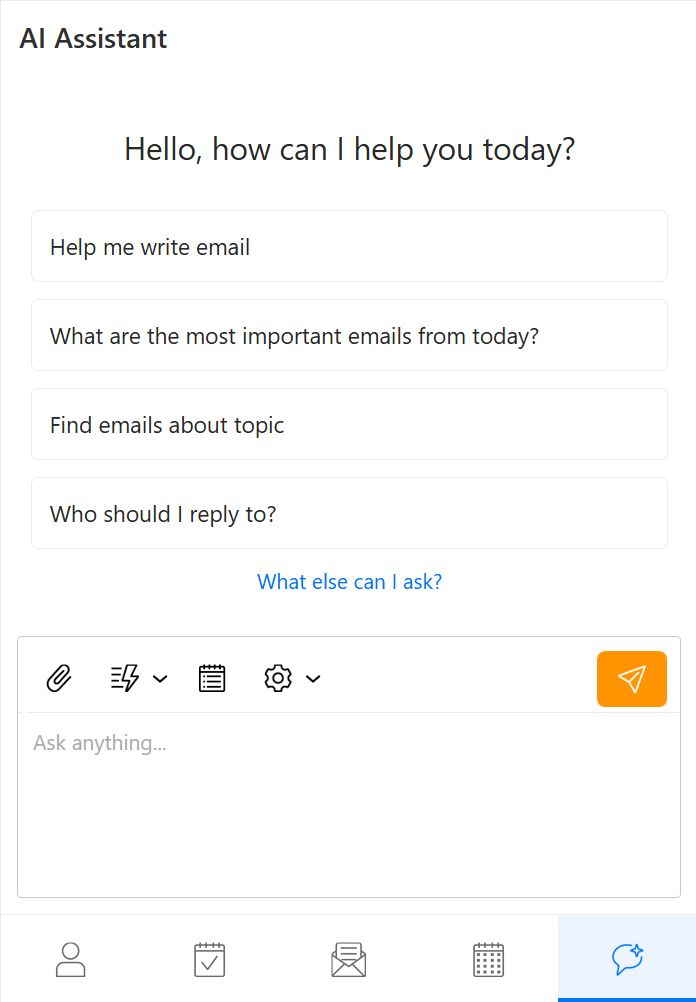 eM Client 11: AI Assistant
Note: AI Assistant can currently help you with emails, and actions for other parts of the app will be added over time.
-
Redesigned AI Composer
The AI writing assistant now lives right inside the compose window instead of opening in a separate one, so you can get AI help with your message without ever losing your place.
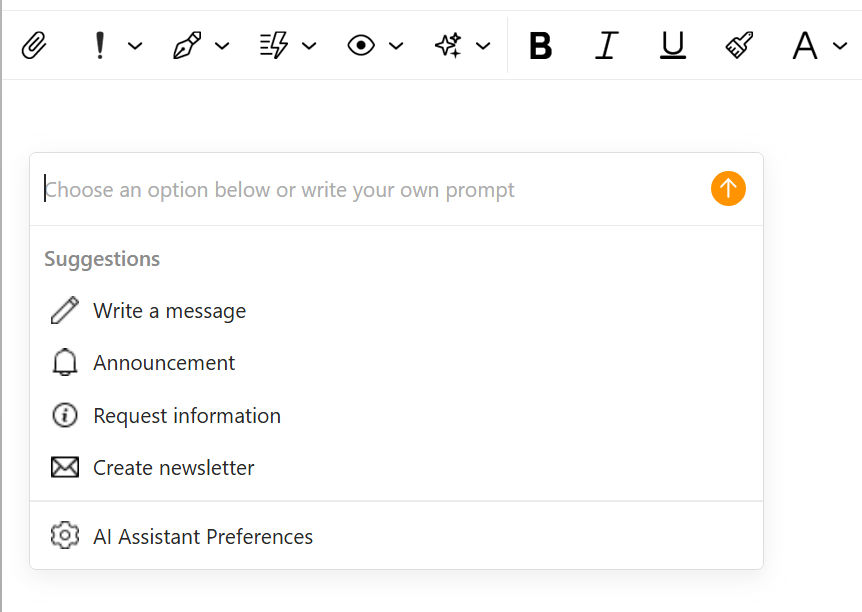 eM Client 11: Redesigned AI Composer
-
Write in my style
Personalized AI writing that actually sounds like you. Tell eM Client a bit about yourself and how you write – or let AI learn your style automatically from your sent emails – and every AI‑generated draft or reply will match your voice and tone. No more generic, robotic‑sounding AI text: just faster emails that still sound like you wrote them.
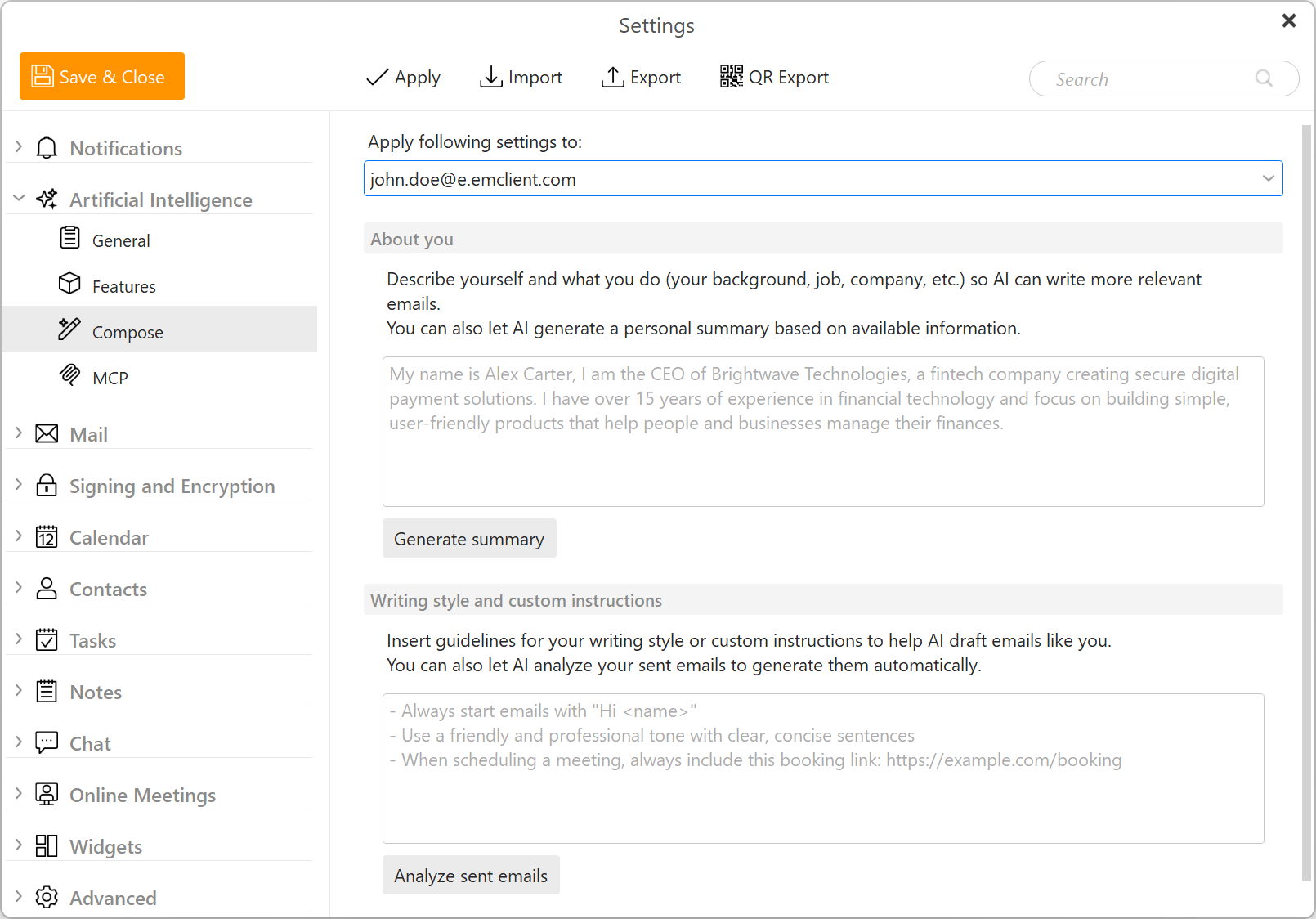 eM Client 11: Write in my style
-
AI Summarize
Skip the long read. Click the "Summarize" button in the subject line of any message to get a quick overview of the main points — whether it's a single email or a whole conversation — so you can catch up in seconds instead of scrolling through every reply.
-
Smart (AI) Create task/event from message preview
Schedule with a single click – eM Client can detect relevant information from message content using AI and create an event or a task from the message detail panel.
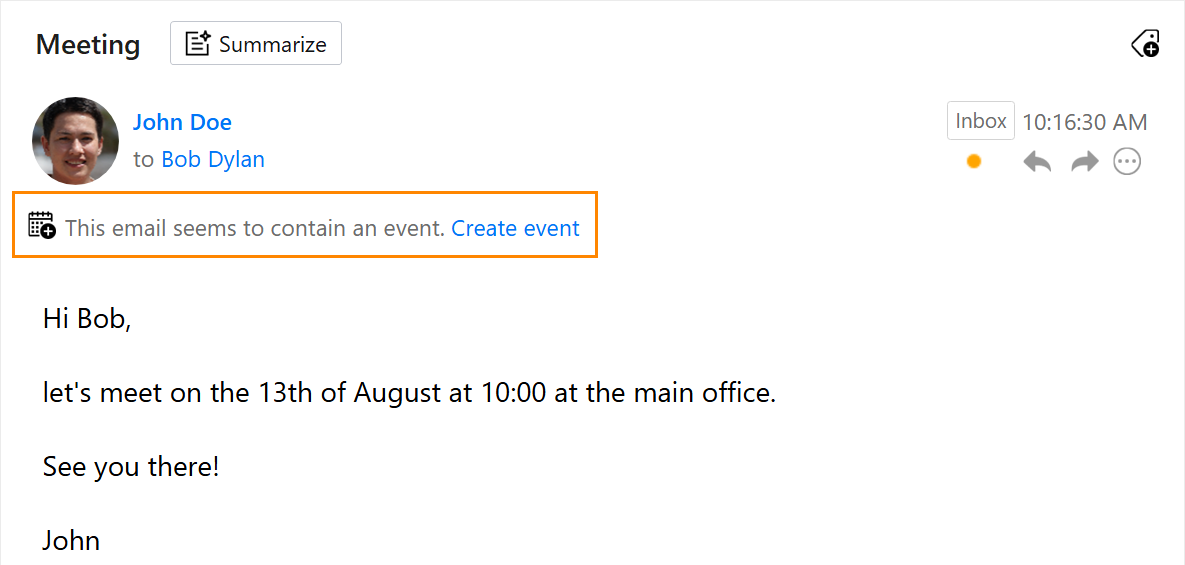 eM Client 11: Smart (AI) Create task/event from message preview
-
Quick reply buttons
Let AI analyze your incoming emails and generate helpful short replies you can instantly open and insert with a single click.
 eM Client 11: Quick reply buttons
-
Natural language search
Search smarter with the new Natural Language Search. Open it from anywhere in the app with Ctrl + Shift + U or via Tools > Natural language query, then describe what you're looking for by typing a normal sentence. eM Client will convert your request into the appropriate search keywords using AI.
-
Custom AI provider
Choose what powers your AI features. With the new custom AI provider setting, you can connect eM Client to the AI service of your choice instead of relying on the default one. Whether you want to use a provider your company already works with, stick to a model you trust, or keep things under your own control, eM Client's AI features – from the AI Assistant to Summarize and Quick reply buttons – can run on the provider you select.
You'll find this option in Settings > Artificial Intelligence.
Note: AI providers and models differ in what they can do, so we can't guarantee that every AI feature will work with every custom provider or model.
-
Model Context Protocol (MCP) support
Connect your AI agent to eM Client to find accounts and folders, search and retrieve emails or conversations, perform selected mailbox actions, draft and send messages, and more!
Automatic setup or configuration instructions are available for ChatGPT, Codex CLI, Copilot App, Copilot CLI, Claude Code, Antigravity CLI, Claude App, LM Studio, AnythingLLM, OpenClaw, but any tool that supports connection to MCP server via stdio can take advantage of accessing eM Client's data.
Settings for this feature can be found in Settings > Artificial Intelligence > MCP.
To analyze what MCP actions are available, please check this dedicated MCP Support page.
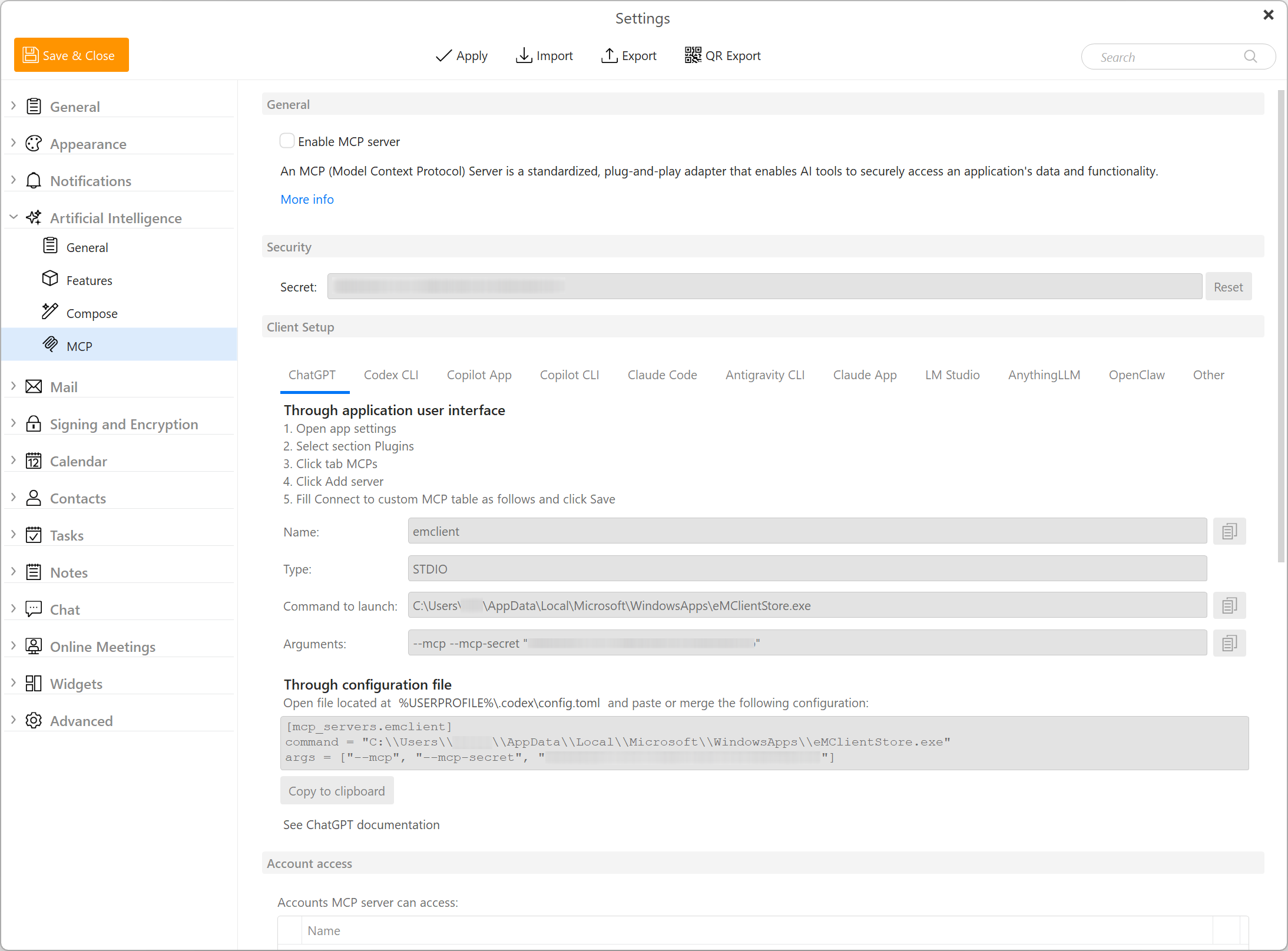 eM Client 11: Model Context Protocol (MCP) support
Productivity improvements
-
Command Palette
Users preferring keyboard‑only controls can now take advantage of a new command palette feature. Quickly open the console using the Ctrl + K keyboard shortcut or via Menu > Tools > Command Palette. Command palette window will open – type a command or search for the one you’d like to trigger.
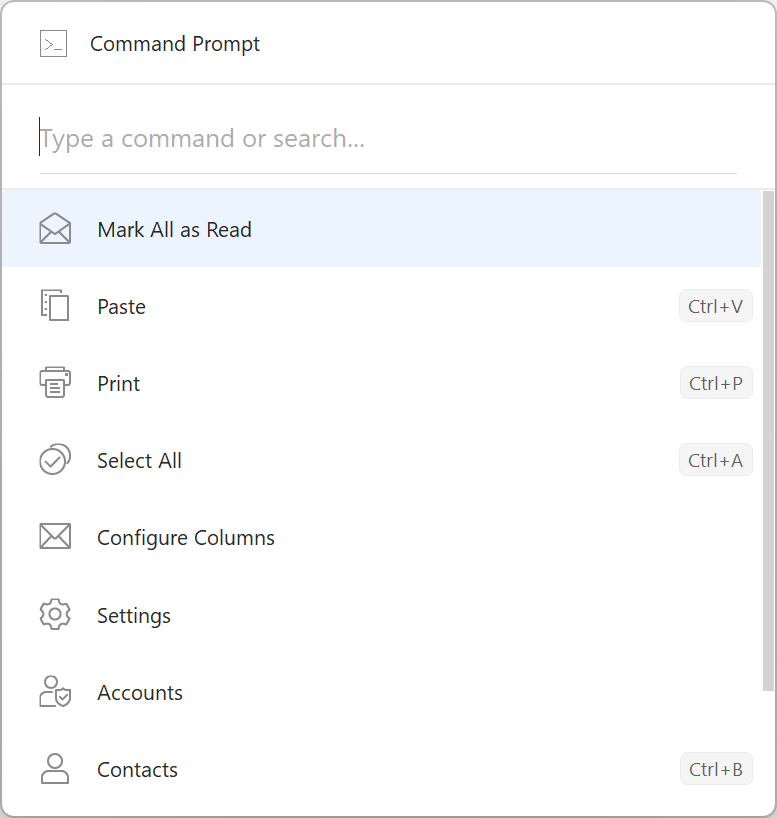 eM Client 11: Command Palette
-
Pinning
Pin your messages to the top of your message list using the “Pin” button on the main toolbar. The message will stay at the top of your message list until you unpin it, so you won’t have to spend extra time looking for it.
Pinned status will synchronize for Exchange accounts and for IMAP accounts with custom flags capability.
-
Account colors
Assign different colors to accounts in the Accounts window in General tab of the given account. The color shows in the top bar/header of new message and reply windows so you can easily tell which account is being used.
-
Saving replies in the same folder as the original message
We've added an option to save sent messages in the same folder as the message you're replying to. This way, you can choose to keep related conversations in the same folder, which can be especially useful if you use folders to organize different projects or tasks.
Enable this in Menu > Accounts > your account > General tab > Send (Windows) or Accounts > your account > General tab > Send (macOS).
-
Autonumbering for lists
Create lists in seconds with automatic formatting. Simply type 1. for a numbered list or – for bullet points and eM Client will automatically continue the formatting as you write.
-
Account selection for Global folders
Now you can decide which accounts will be included in your Global folders – you can find this option via right‑click on any of the global folders such as All Inboxes, Unread, etc.
-
Custom notifications and new settings
Explore the redesigned notification options in Settings > Notifications. The clearer layout makes it easier to customize how and when you're notified for each account, item, and event.
Email notifications can be adjusted in a more granular and detailed way. Customize alert action buttons (up to 5 different actions can be selected and you can even create new ones), group recent new emails into a single notification or disable notifications for emails of a specific email category, and more!
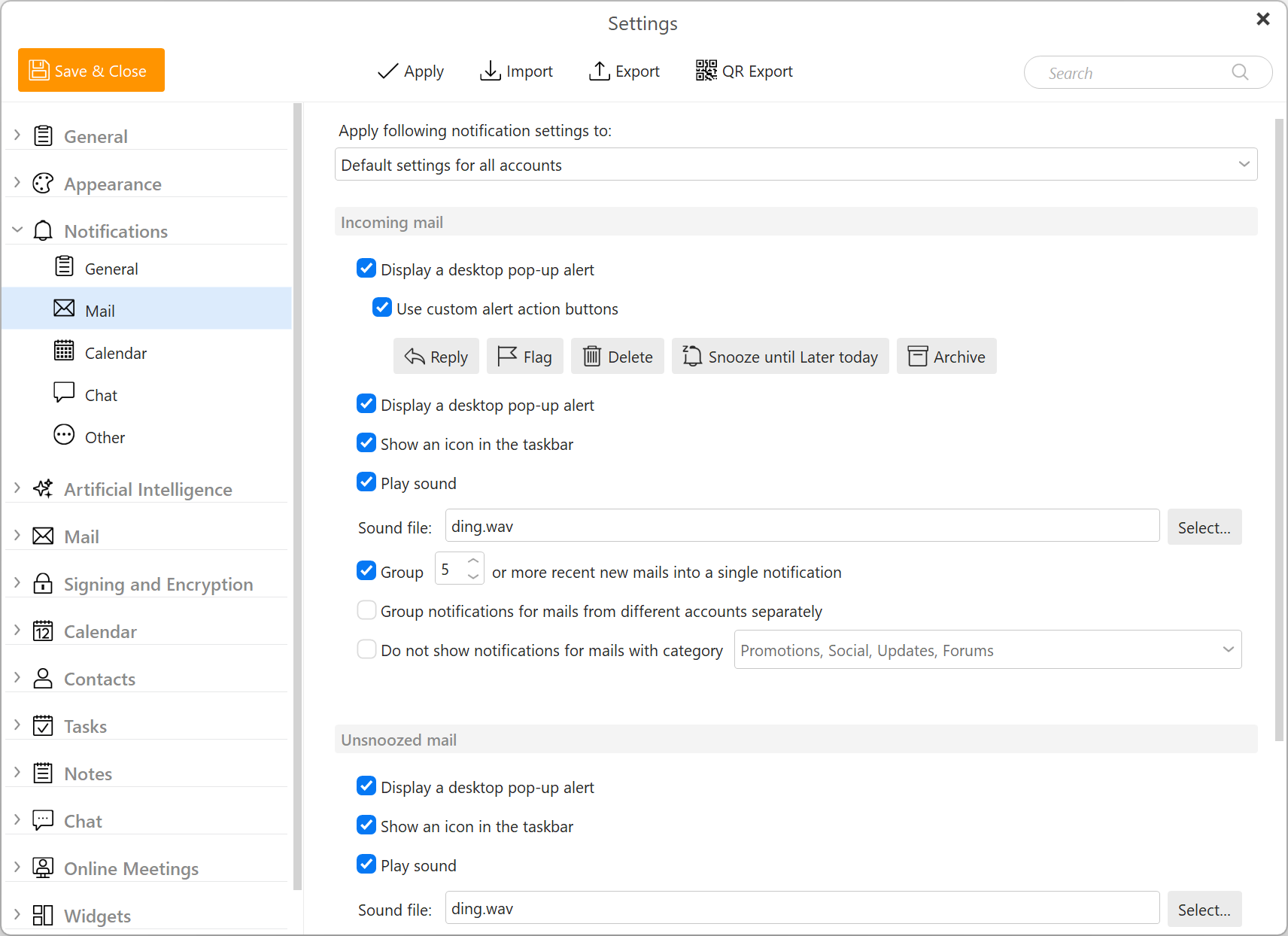 eM Client 11: Custom notifications and new settings
-
Matrix chat support
Use your favorite open‑source, decentralized and secure chat service with eM Client 11. Just add your Matrix account and view all your chats in the Chats section – whether it’s a private or public room – with messages and files protected by end‑to‑end encryption (E2EE).
-
Customizable message detail toolbar
Instead of just the reply button, have all your frequently used actions at the ready directly in the message detail toolbar. You can adjust the toolbar to your preferences by clicking the three‑dots icon and selecting “Customize”.
-
Get more space for what matters – the message itself. The new compact mail header shortens the information lines at the top of each message, trimming long lists of recipients and other details into a tidier, more condensed view. You'll see less clutter and more of the email content at a glance, and the full details are still just a click away whenever you need them.
-
Profile colors and easier profile switching
Color‑code your profiles to tell them apart at a glance. Choose a color during profile creation or later in Settings > General > Profiles. Your profile color will show in the top bar, overriding any theme color.
You can also easily switch between profiles or manage profiles using the profile icon in the upper right corner of the app window.
Data synchronization and connectivity
New eM Sync service
With the new app version, we introduce eM Sync – a service that allows users to synchronize settings between devices. This is not only convenient, but also secure. The data itself is protected with zero‑knowledge end‑to‑end encryption, which means we cannot read any of the information, even if we wanted to.
You can create a new eM Sync account or sign in to an existing one during the initial setup or any time later in Settings. Log in to your eM Sync account on multiple devices to keep your selected settings synchronized across all of them.
eM Sync supports synchronization of all your accounts as well as general app settings, signatures, email templates, and Quick texts. You can learn more about eM Sync here.
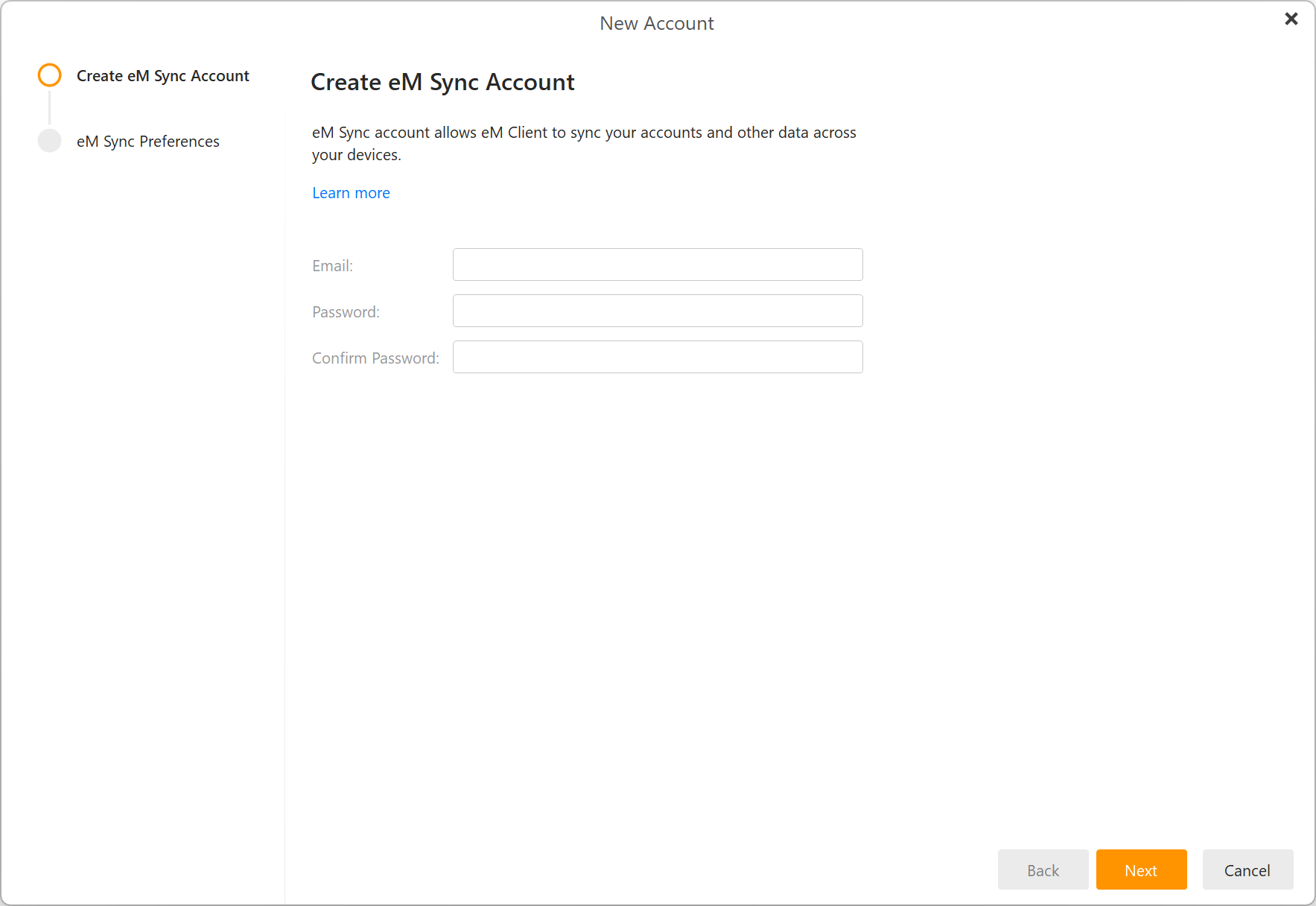 eM Client 11: eM Sync
-
MS Graph support
eM Client 11 introduces MS Graph support – the Graph API will replace Exchange Web Services (EWS). Microsoft has started retiring EWS for Microsoft 365 accounts on the 1st of October 2026.
If you are upgrading from a previous version of eM Client that has EWS or personal Microsoft accounts set up, you will be able to easily migrate during the initial startup. For more information, check out our blog post here.
-
Proxy configuration
Configure proxy connections with credentials directly inside eM Client. The new option can be found in Settings > General > Network.
Brand new rules
-
UI redesign
Create rules more easily with the improved single‑window user interface. You'll also find more rule actions, giving you additional ways to automatically organize, process, and manage your emails.
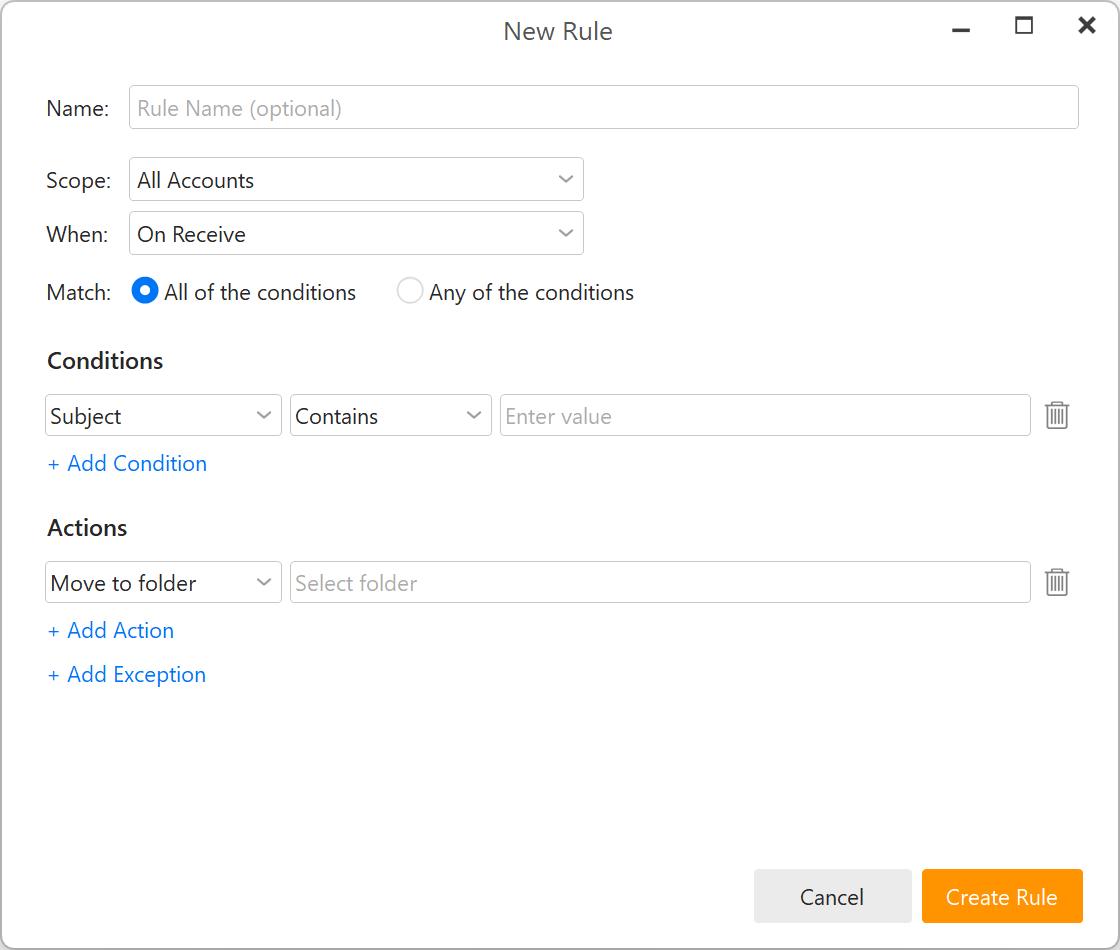 eM Client 11: New Rules UI
-
New rule invocations for Archive and every 10 minutes
You're no longer limited to running rules only when messages are sent, received, or triggered manually – you can now also set them to run when archiving messages, or periodically every 10 minutes. This allows for continual, hands‑off mailbox management, with your rules working in the background even when you're not actively using eM Client.
-
Rules library
Easily adopt predefined rules from our Rules library. You can also just use them as a base and tweak the actions, exceptions or any part of the rule per your needs.
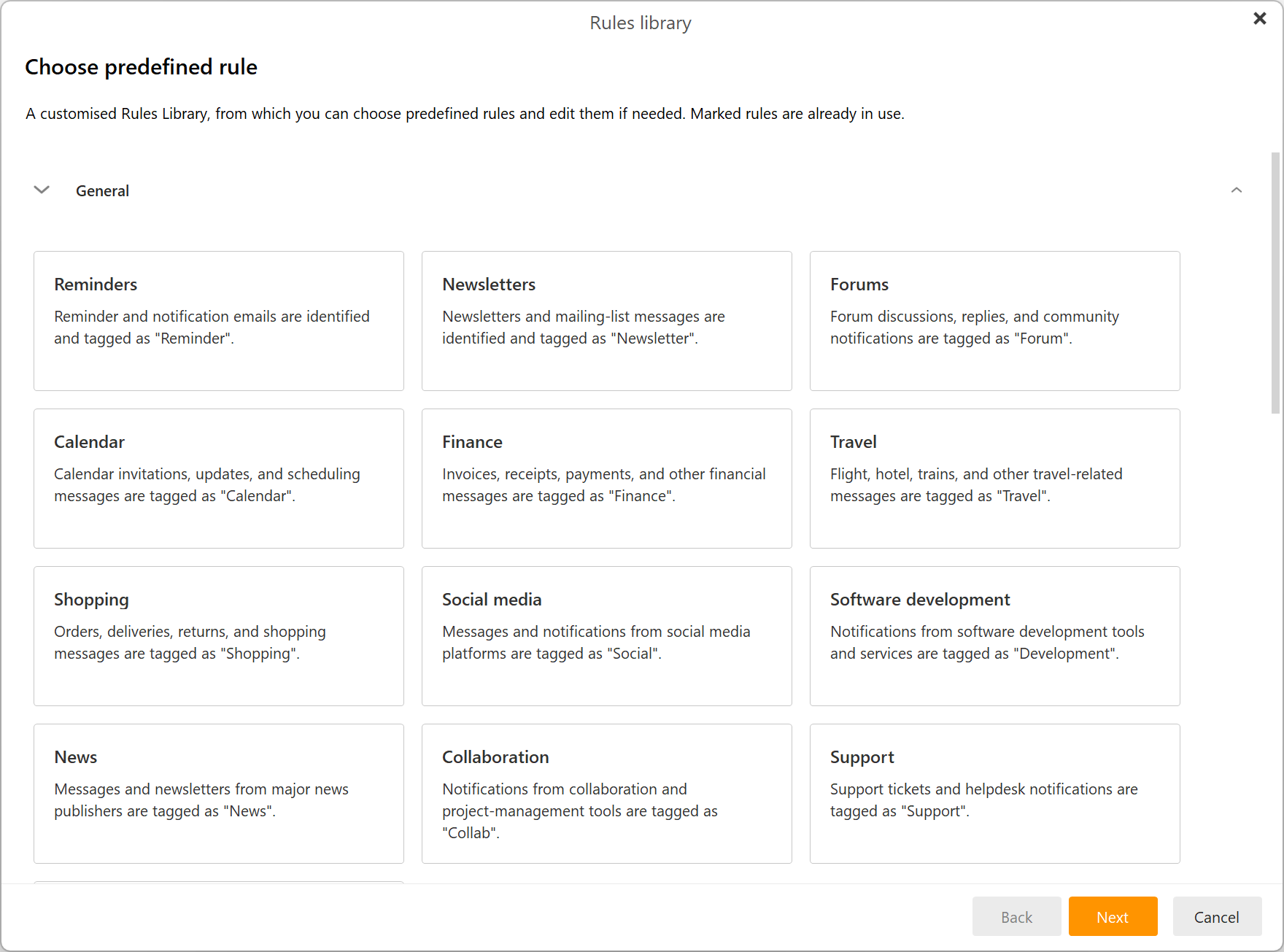 eM Client 11: Rules library
-
AI Rules
Get help from AI and create a rule using a natural language prompt! This means you can just describe your desired result in your own words, and AI will create the rule for you using the available options.
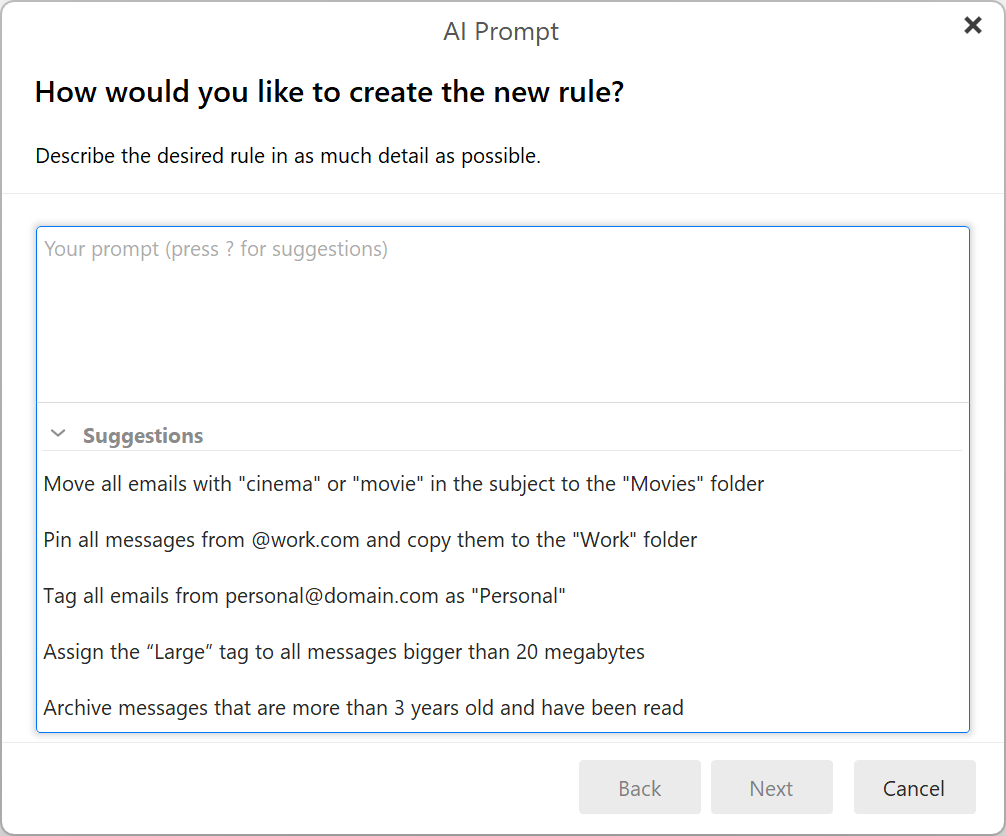 eM Client 11: AI Rules
Calendar improvements
-
All‑day events visible all day
The calendar now displays all‑day events all day – so you’ll know which day is completely booked at a glance. Just set the event to show as Busy, Tentative or Out of office.
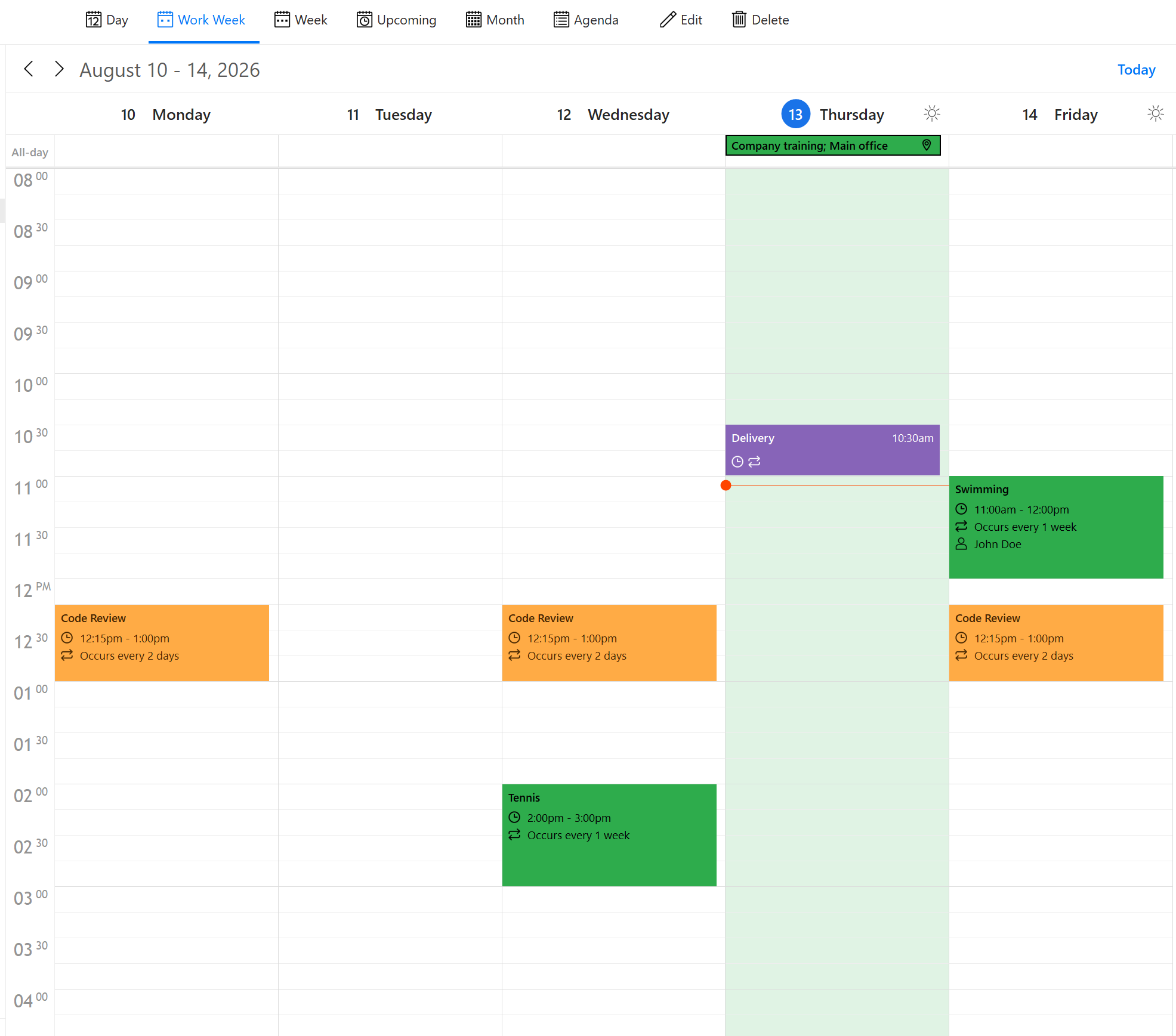 eM Client 11: All‑day events visible all day
-
Multiple reminders for events and tasks
Never miss an important event or a task again thanks to multiple reminders! Add as many reminders as you need, so nothing slips through the cracks.
-
Multiple time zones
Work more effectively across regions and avoid scheduling meetings outside working hours. This new addition is especially valuable for remote teams or frequent travelers. You’ll find the time zone settings in Settings > Calendar > Time Zones.
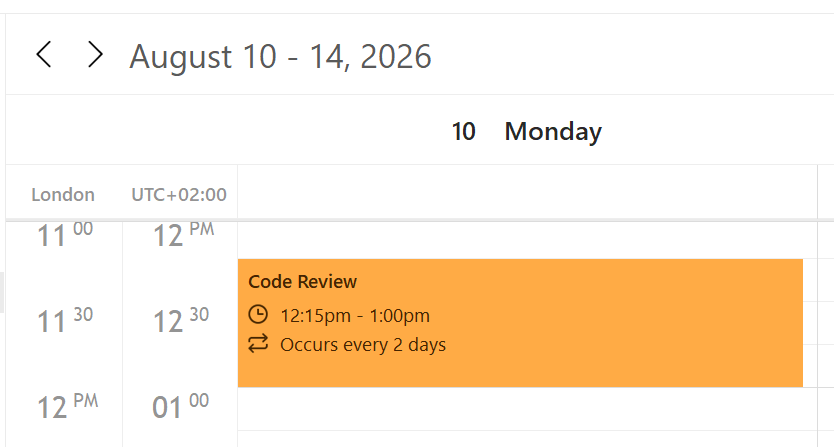 eM Client 11: Multiple time zones
-
Organizer visible in the calendar
Event organizer is now visible in the day and week view (as long as there’s enough space to display the details).
Deeper macOS integration
-
Apple Script support
Write and launch your own scripts in Script Editor or Script Debugger and include eM Client in the workflow! The feature currently includes browsing your accounts, folders, messages and their properties. Your script can add accounts, compose and send new messages with attachments!
-
macOS Spotlight support
Find and open your emails, events, contacts, tasks, notes and attachments easily directly from Spotlight search.
Smaller features
-
Make year optional for birthdays
Want to add a birthday to a contact but don’t know the birth year? Or simply prefer not to save it? You can now leave the year blank while still keeping track of the birthday.
 eM Client 11: Make year optional for birthdays
-
Gmail Throttling detection and notification
eM Client now detects when Google's Gmail bandwidth limits are throttling your sync and shows a notification at the top of the app to let you know.
This restriction is set by Google, not eM Client – more details and possible workarounds here.
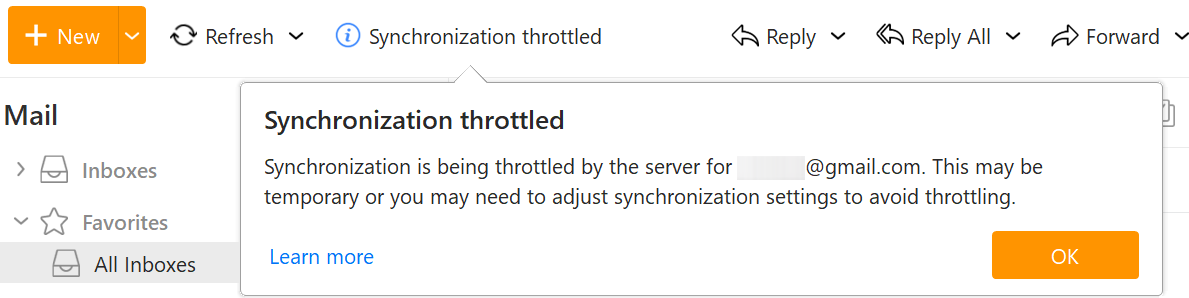 eM Client 11: Gmail Throttling detection and notification
-
New Search Option for Current account
The search feature is even better thanks to the new option to limit your search to the current account. You’ll find it added in the folder selection on the left side of the search field.
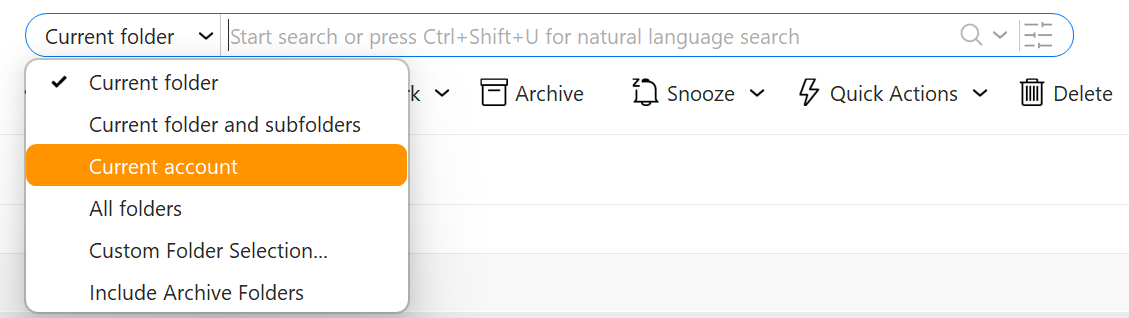 eM Client 11: New Search Option for Current account
-
Don't select first message
Opt out of automatically viewing the first message in a folder – whether it’s just your preference or for security reasons. Find the option in Settings > Mail > Read > Message List and uncheck Select first message in the list.
-
And more!
As usual, there are always plenty of “hidden” improvements in the background, as we continually try to make the app faster and more efficient!
Get eM Client 11
Download eM Client 11
Free, subscription & Lifetime Upgrades
Upgrade to eM Client 11
Paid users with eM Client 10 or older
Get a new license
Don't have an eM Client license yet?