Frequently Asked Questions

Search Results

  • What mail services does eM Client support?

    eM Client supports all standard mailing services that synchronize items through the IMAP protocol or download messages through the POP3 protocol. The application also supports synchronization through the Exchange Web Services protocol for MS Exchange and Outlook.com accounts. Outlook.com accounts can also be set up with IMAP for mail and AirSync for calendar and contacts.

    To include examples: we support Gmail, Apple iCloud, Office 365, Outlook.com (MSN, Live, Hotmail), IceWarp, Microsoft Exchange, Yahoo, AOL, GMX, Kerio, ... and many more - feel free to try out the Automatic setup and see.

  • What is the difference between the IMAP and POP?

    An email program such as eM Client can retrieve your emails using different protocols. Two of the most common protocols are IMAP and POP3. So how do they work?

    POP3 protocol downloads the emails from Inbox to a specific device from the server. Once the emails are downloaded, the originals are deleted from the server. This means that if you’re using POP3, the emails are tied to a specific device and can’t be viewed on other devices without forwarding them.

    IMAP, on the other hand, is not tied to a specific device. Instead, you can view your emails on any device because the emails are stored on a remote server and not on an individual device. A good example of this would be when you check your Gmail account on your phone, through your email client on your desktop or through the web interface on your laptop and you see the same messages in each case.

    Most of today’s mail servers support IMAP, even though there are still exceptions. If there’s only a small storage space available on the server, synchronizing messages through IMAP would quickly lead to hitting the limit so only POP3 might be available. Fortunately, eM Client supports both IMAP and POP3. You can therefore use whichever type you prefer, depending on your server.

  • I have lost my eM Client activation key, how can I retrieve it?

    Don’t worry, a lost activation key is no problem.

    Simply enter the email address used for the license registration here and we will send you your activation key immediately.

    If you have problems receiving the key, please make sure that you entered your address correctly and also check your Spam folder.

    If you’re worried that you cannot retrieve your key because eM Client is in offline mode, please be aware that most email providers in this day have a webmail option, where you can login and get your messages through your internet browser (for example Gmail addresses can be checked in your browser at mail.google.com, Hotmail, MSN, Outlook and other Microsoft accounts can be checked at outlook.live.com, etc.).

  • Why do I have multiple copies of a message in Favorite folders?

    The special folders in Favorite folders collect messages from all accounts. If there are copies of the same message it can mean the message is copied into more folders or among more accounts.

    Common causes for this include:

    • Duplicate setup - make sure each of your accounts is set up only once in Menu > Accounts, or all messages will appear twice in Favorite folders
    • Rules - do you have any rules that are meant to copy incoming messages? Check the Menu > Rules to make sure that there isn't a rule creating unwanted copies.
    • Forwarding - do you perhaps have a server-side forwarding set for one of your accounts? If you don't want messages from one account to always be forwarded to another, check your server rules, for example through webmail

    Note: In eM Client 6 this problem also sometimes happened with Gmail accounts, which keeps a copy of each message in All Mail folder and also created copies in Important and Starred labels.
    Since eM Client creates a separate folder for each label, emails that have multiple labels attached to them will have multiple copies saved. The only workaround for that issue is to disable the showing of redundant labels like "Starred" and "Important" in IMAP. You can find this option by opening a web browser and logging in to Gmail. Click on Settings, and then go to the tab at the top called "Labels".

    Since eM Client 7.0 we have adapted Gmail's internal structure. All messages have just one copy in the All Mail folder and other folders are just assigned labels.

  • How to setup an alias in eM Client?

    To set up an alias to your account navigate to the account settings under Menu > Accounts, select your account, click on "Aliases" under the General setup of your account and add your email address to the list of Aliases.

    Note: In order to send out on behalf of such account, eM Client may require an initial setup of the account with your mail server, for example connecting the two accounts in your online Account settings. In case of Google accounts you first need to go to gmail.com and link the two accounts in Settings there.

  • New window requires me to login to my Gmail account through a browser window, what should I do?

    This window is a normal step of Gmail accounts set up, as can be seen in our step-by-step Gmail/G Suite setup on our website.

    It's part of Google's authentication called oAuth, where instead of giving the external application (eM Client) your password, you just give access from your Google account settings.

    So, log in with your Gmail account and allow access for eM Client by clicking on "Accept" on the second browser page right after you log in to the browser.

    eM Client will be granted an authentication token that you can revoke at any time using your online Google accounts settings.

    Read more in our blog: OAuth authentication with Gmail

  • Gmail - All of my messages are marked as Important, how to stop it?

    This issue started happening in eM Client 7.0 when we changed the way we work with Gmail. Since we started supporting Gmail labels and folder structure, all labels are synchronized.
    And one thing that was not visible before (and might not be visible in other clients) is that Gmail assigns the 'Important' label to all messages synchronized through IMAP.

    In eM Client 8.1 we added a workaround in the Menu > Accounts section under the IMAP tab.

    Under the Tag section you will find the Show Important tags option and you can select to either show it based on Gmail's settings, Always show it or to Never show it. 


    LEGACY OPTIONS

    In older versions, you need to go to your Gmail settings in your web browser and create a filter that will remove the Important label automatically from each message.

    To achieve this, go to Gmail webmail, open Settings > Filters and Blocked addresses. Create a new filter where all messages received by your email address will never be marked as Important.

    Screenshots of such filter setting can be found below:


    Note: You can either apply the filter directly to all previous conversations or open the Important folder/label and manually select all messages to remove the Important label

  • Gmail - How to set my account as POP?

    Update 6/10/2022: Since Google discontinued their Less secure apps setting, you might not be able to use the account as POP anymore. Please read more in this article: Google ‘less secure apps’ access and what it means for eM Client

    While Gmail's default (and preferred) email protocol is IMAP, we definitely support a POP protocol option as well. However, since it's not the available setting from Autodiscover, you will need to set up the account manually.

    Gmail has a special secure login called oAuth, which natively supports only IMAP. However, a secure POP setup can still be created thanks to App-specific passwords.

    You will just need to Allow access for Less secure apps (as POP connection is seen as less secure than IMAP with oAuth login), enable POP protocol in your Gmail settings and then enable 2-factor authentication to create an App password (a special password which will be used only for eM Client - so your actual Google password is safe).

    Manual setup in eM Client is then available in the New Account window under Mail > Other.
    There you can select the POP protocol, input your server settings and create your desired POP setup. Make sure to use the created App password instead of your main Google password.

  • Gmail - Why do I need to synchronize the All Mail folder?

    After you set up your Gmail account you might encounter this error message:

    'All Mail' folder disabled

    For Gmail and Google Apps accounts, eM Client synchronizes the 'All Mail' folder. It appears that IMAP access for this folder on account '<your email address>' is currently disabled and synchronization will fail.

    To fix this, you need to make sure the 'All Mail' folder has 'Show in IMAP' checked in their Gmail settings at https://mail.google.com/mail/u/0/#settings/labels.

    Simply follow the directions from the error message and enable All Mail label to be shown in IMAP.

    NOTE: The 'All Mail' folder is a vital part of your Gmail account - it stores all the messages in your account (with the exception of Trash and Spam folders - these are separate).
    Synchronizing this folder will not create any duplicates of your messages, because eM Client supports this specific Gmail structure and each message is stored only once in the All Mail folder and all the other folders (Inbox, Sent, Drafts, ...) are just Labels - special search folders which will show the messages from All Mail folder with the matching Label. Kind of like Tags in eM Client.

    This actually allows for the synchronization to be faster and the data to take up less space on your device than if the Labels were converted into real folders.

  • Can I change the order of Conversations?

    The default style of conversations we implemented is inspired by Gmail, so the order is currently only from the Oldest at the top to the Newest at the bottom. The messages marked as read will be collapsed by default so you will always be able to read the newest messages comfortably, but if you want to read the whole thread you can do so in a natural order.

    In eM Client 10, the option to reverse the order of conversations was added. You can find this option via menu > View > Conversations, or in menu > Settings > Mail > Conversations.

  • Gmail - My label colors are not synchronized, how to resolve it?

    Unfortunately, Gmail does not forward the information about the label color through IMAP protocol, so eM Client cannot load the exact same colors and assigns random ones instead.

    However, if you go to Menu > Tags and create a new tag with the same name as your Label, you will be able to select your own color in eM Client.

    This workaround will work for all top-level Folders/Labels, not subfolders.

  • How to set up Automatic replies?

    Automatic replies (also called "Out of office") can be enabled in Menu > Tools > Automatic Replies.

    In the new window that pops up, you can select the email account to apply the Automatic reply to, set the First and Last day when the reply is to be sent and then input the Subject and Body of the reply itself.

    The Automatic reply feature is currently available for Gmail accounts, Icewarp accounts, Imageway, SmarterMail, MDaemon, and accounts using Exchange protocol (Microsoft 365).

    Read more in our blog: Automatic Replies in eM Client for tutorial and Out of office messages with eM Client for examples.

  • My Mail section has disappeared, how can I get it back?

    If any of the main left-side sections is missing, whether it's Mail, Calendar, Tasks or Contacts your data is definitely not gone. It just means you accidentally hid the section.


    You can make it appear again easily.
    Just right-click any of the other items in the same menu (for example Calendar) and a drop-down menu with all options will appear. The missing section will not have a checkmark next to its name.
    Click it to check it and make it appear again.

    Missing Mail section

  • What is the difference between Archive feature and Automatic Archiving in eM Client?

    eM Client supports two specific kinds of Archiving features:

    • Local automatic archiving inside the eM Client program and
    • Server-side archiving.

    Automatic Archiving

    eM Client archiving can be found in Menu > Settings > Mail > Automatic Archiving.

    The way eM Client archiving works is that the program will create a special set of local folders called 'Archive'. Archive folders will be shown below all your other account folders and Archived messages will be only available in your device. If you will choose to archive messages from a synchronized account (set up with IMAP or EWS protocols) the messages will be removed from the server as well, so you will no longer be able to access them using webmail.

    To make the automatic archiving actually work you need to enable it, set how often the Archiving should happen (Archive every X days), set how old the messages should be (Archive messages older than X days) and most importantly, select which accounts/folders you want to perform the Archiving on (Account Preferences).

    Click the ‘Archiving Scope’ field for each Account to select which folders should be included.
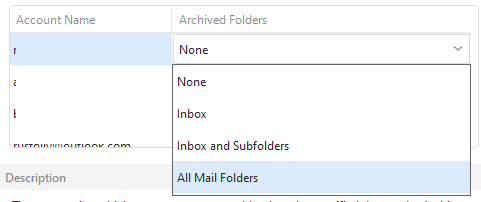
    You can also perform the archiving manually by clicking the 'Perform Archiving' button. This function can be used even without enabling the Automatic archiving in the top checkmark (Enable Automatic Archiving).

    Server-side Archiving

    For IMAP and EWS accounts the Archive feature will move messages into a single folder called 'Archive', which will be among the other special folders like Inbox, Sent, Drafts, etc.
    You can select a message (messages) and use the Archive option via right-click, toolbar button or the default shortcut Ctrl+Shift+A.

    The shortcut can be changed in Menu > Settings > General > Shortcuts.

    An exception to this is the Gmail Archive. This is a specific function which removes the 'Inbox' label from a message in Inbox, leaving the message accessible in the 'All Mail' folder. You can read about Gmail's native archiving and what it means on Google support. 

    Read more in the Documentation: Automatic Archiving

  • What are Tags in eM Client?

    Tags are labels you can use to attach a detail or category to a specific item. You can then use this tag to search for these items, look through special tag folders or just use the colors to make your data more organized.

    You can manage tags in Menu > Tags on Windows or Tools > Tags on MacOS. When you create a tag, you can give it a name, assign a color and even a keyboard shortcut. You can then specify if the tag can be used for messages, events, tasks, contacts or notes or any combination of these.

    If your items are synchronized with a server that supports the tags feature, they will be synchronized across your devices. Otherwise, the tags will be kept locally. Gmail labels are treated as Tags in eM Client.

    You can also color-code your message list according to your tags. To enable this, select ‘Use color of tag as text color’ in menu > Settings > Appearance > Lists.

    Note: Tags have been called Categories in eM Client 7 and all older versions of eM Client.

    Read more in the Documentation: About Tags

  • The meeting/event reminders keep popping up every 5 minutes, how to disable them?

    This is a known issue with some Gmail events and system notifications, you can resolve this by unchecking the Use system notifications box in Menu > Settings > General > Notifications.

  • Google Contacts Error, Execution of request failed (Invalid request)

    If you get the following error:

    [Google Contacts]Uploading item(s) to folder '[email protected]/Contacts' failed due to the following error: Execution of request failed: https://www.google.com/m8/feeds/contacts/default/full (Invalid request.)

    The first thing you should know is that most of the "folders" of Google's mail, contacts, tasks, calendar, etc. are just a complex Tag system that's pretending to be folders.
    When objects (messages, events, contact entries etc.) are without a Tag to sort them somewhere, strange things and errors start to happen. Understanding that will help you understand the rest of the explanation and the solution.

    It seems that if you click the orange + New > Contact button then it will typically default to the root /Contacts folder, which is what's causing your error. If you're creating a new contact using that method, you must either select a Tag to apply to the folder or select a subfolder.

    The way to change the default is to select any of the subfolders before clicking the orange + New > Contact button. Then it will automatically apply a tag to the contact and it won't trigger the error.

    To fix the rest of your contacts that have this "No Tag" error, the easiest thing to do would be to go to the Contacts folder and sort all of your contacts by Tag in ascending order. This will cause all your "unsorted" contacts to appear at the top. Drag all of the unsorted contacts into any of your subfolders and this will apply a tag to them and stop the error. It could also be helpful to click the "select" option so that you can easily select multiple entries at once.

  • How to use the one-click archive function for any IMAP account (not only Gmail) in eM Client?

    This feature is available for all IMAP and Exchange accounts. It will create an Archive folder directly inside that account so your messages stay on your mail server.

    There are several ways to archive a message. The convenient 'Archive' button is located in the top toolbar. You can also right-click any message and select ‘Move to Archive’ or use the keyboard shortcut – ‘A’ by default, but you can change it in menu > Settings > General > Shortcuts.

  • Are server rules supported in eM Client?

    You can set up and manage some of the rules directly on the server for Exchange, Gmail and IceWarp accounts.

    Next to the 'New rule' button in the Rule window toolbar you can now select from Local rules and your accounts' specific server rules.

    When the rules are on the server instead of just in eM Client they will be applied to new messages, even when eM Client isn't running. And if you use eM Client on numerous devices, you don't need to set up or copy the rule to each device separately.

  • Google Contacts synchronization failed - Contacts API is being deprecated

    On June 15th, 2021 Google phased out the Google Contacts API, which is a protocol we used for synchronizing Google contacts in older versions of eM Client. If you are still running one of these versions, you will encounter this error:

    [Google Contacts] Synchronizing folder '[email protected]/Contacts' failed due to the following error: Execution of request failed:

    (Contacts API is being deprecated. Migrate to People API to retain programmatic access to Google Contacts. See https://developers.goog.ecom/people/contacts-api-migration.)

    We have switched to the current People API in eM Client 8.2, so if you are running any of the older versions, you need to either install the update (if your license is valid for eM Client 8) or upgrade your license and then install it.

    You can of course keep using the older version if you prefer, but you will not be able to synchronize your Google contacts anymore, they will only be stored locally as they are.

    To avoid the error pop-up, you can work around this situation by copying the contacts to Local Folders and switch off the Google Contacts service in Accounts settings.

  • Disable TLS 1.3 on Windows 10 - Gmail OAuth loop

    TLS 1.3 is the fourth version of the commonly used protocol for secure communication on the internet. Unfortunately, not all apps and systems can work with it correctly now, such is the case with Windows 10.

    You can view which Windows versions can work with TLS 1.3 on this Microsoft page: TLS protocol version support

    Gmail OAuth login on Windows 10
    When TLS 1.3 is enabled, this can cause issues with the Google accounts OAuth - the authentication window will show up, but the setup can never be finished, the OAuth window will keep reloading and the eM Client app will not be able to connect to the Gmail server to synchronize your data.
    The solution is to run the DisableTLS1.3.reg file attached to this article, start eM Client, and try the Gmail account setup again.

    A similar issue can affect Kerio accounts when using Windows 10 as well. The solution is also to disable TLS 1.3 until Microsoft provides the required update to Windows 10.

    This solution can also work if you encounter this error when sending or receiving an email:

    "Cannot determine the frame size or a corrupted frame was received."

  • How do I change the color of my folders?

    Right-click the folder, select Folder color and then select from the preselected list or set your own custom color.
    For Gmail folders, the color of your label is used instead, which can be set in menu > Tags.

  • Google Contacts - Parameter validation failed for "resourceName" : The value did not match the regular expression ^people/[^/]+$

    Recently this error started popping up for some Gmail accounts:

    [Google Contacts] Synchronizing folder 'Your Google Account/Other Contacts' failed due to the following error: Parameter validation failed for "resourceName" : The value did not match the regular expression ^people/[^/]+$

    This error means there has been a problem getting some contacts synchronized from the Google server, specifically in the 'Other Contacts' folder.
    This folder works similarly to eM Client's Recipients history - it's Google's folder for saving email addresses you previously sent messages to, so these are usually not contacts created by you, but automatically by the server. Your contacts are in the main Contacts or My Contacts folder. 

    Deleting the contacts from 'Other Contacts' and then repairing the folder in eM Client should resolve the issue.

    Other Contacts cannot be deleted from external apps though, so you need to go to this page in your browser: https://contacts.google.com/other
    Make sure you are logged in into the correct Google account and then delete the items in this folder.
    Back in eM Client, open the Contacts section.
    Right-click the Other Contacts folder and open Properties
    Open the Repair tab and click Repair.

    This will re-synchronize the folder and without the invalid contact, the error should not pop up again.

  • Gmail accounts - Birthday calendar no longer synchronized

    In December 2024, some Google accounts stopped showing the Birthday calendar after Google changed the way it handles birthday events. As a result, the eM Client app currently cannot show it.

    Unfortunately, this means we'll also need to rework how this functions in eM Client. The possibility to display the Birthday calendar is set to be reintroduced in eM Client 11.


  • Sharing Gmail and Outlook.com calendars

    Both Gmail and free Microsoft accounts (outlook.com, hotmail, msn, live, and other free domains provided by MS) allow calendar sharing from their web interfaces, but do not allow the sharing settings to be configured from third-party apps such as eM Client.

    So to share these folders, you need to access the web interface and share the calendar there - but eM Client will be able to synchronize any calendars shared with you, so you can still view all the shared calendars from inside the program!

  • Accepted events don’t sync to my Google Calendar

    In some cases, accepted invitations from your Gmail account may appear in eM Client but not in your Google Calendar. One common cause is the custom Google setting for automatically adding events from invitations.

    Go to your web browser and open your Google Calendar settings. Scroll down to Event settings > Guest permissions and change it to Add invitations to my calendar "From everyone."

    If any other setting is used, Google rejects the events added from eM Client, but does not show any errors or warnings. During synchronization, it seems that the server confirms that all is synchronized correctly, so unfortunately, there is little we can do on our end to avoid this issue.

    However, other factors can also cause accepted events not to sync, so if adjusting this setting doesn’t resolve your issue, please contact our support team for further assistance.

  • How to add Gmail account as POP3 with OAuth

    To add a Gmail account to eM Client as POP3 with OAuth authentication, use the manual account setup:

    1. Go to Menu > Accounts (Windows) or eM Client > Accounts (macOS)
    2. Click '+Add account'.
    3. In the New Account window, select Mail > Other.
    4. Insert your Gmail account address.
    5. For the incoming POP3 server, enter: pop.gmail.com
    6. For the outgoing server, enter: smtp.gmail.com
    7. Continue the setup. You will be redirected to your browser to grant access via OAuth.
  • Why is my Gmail account slow or not syncing properly? [THROTTLED]

    Gmail enforces strict daily bandwidth limits to protect its infrastructure and prevent abuse. This restriction can happen during intensive syncing, large mailbox downloads, or frequent send/receive actions. If your account exceeds the number of requests allowed for that period of time, Gmail will apply a limitation known as “throttling”. The restriction is only temporary and will be lifted automatically after a day.

    You can also try to restrict the amount of data downloaded into eM Client.
    Go to Accounts and under the IMAP tab of the affected Google account, disable download for offline use or limit the time period of messages you synchronize to decrease the amount of data downloaded at the same time, at least temporarily. 
    You can try increasing the time period over the following days if you need the full message history downloaded locally.

    If throttling continues for an extended period of time even with these precautions, there might be additional issues on your email provider's side. In that case, please report this to the Google support team so they can look into it or reconsider these limitations. 


    How can you tell if your account is being throttled?

    Throttling is usually visible in the IMAP diagnostic logs. A snippet of what it looks like in the logs:

    01: A3 OK Success [THROTTLED]

    01: A4 NAMESPACE

    01: * NAMESPACE (("" "/")) NIL NIL

    01: A4 OK Success [THROTTLED]

    01: Detected server type: Gmail

    01: A5 ENABLE CONDSTORE

    01: * ENABLED CONDSTORE

    01: A5 OK Success [THROTTLED]