Separating work and personal communication when using a single device can become a daily struggle. And what if you have to share the same computer with a colleague or family member? The Profiles feature, introduced in eM Client 10.3 release, is available with all paid licenses and offers a solution for exactly these kinds of scenarios.
Let’s delve into how profiles work and how you can set them up to best aid your workflow.
How does the Profiles feature work?
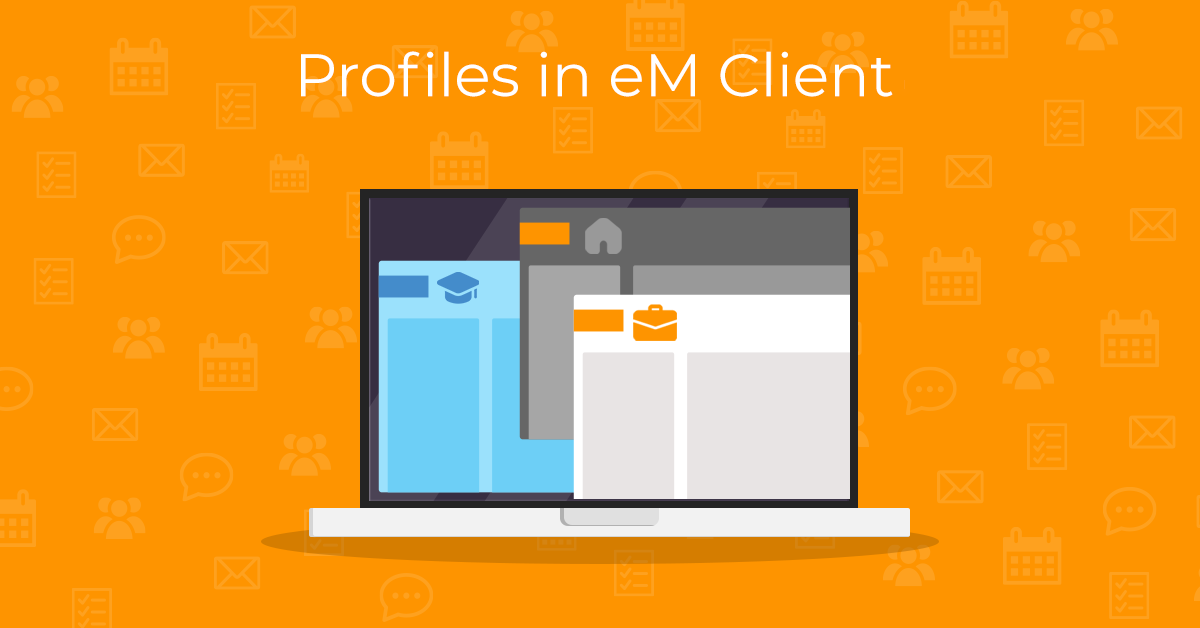
The Profiles feature enables you to create and run multiple sessions of the eM Client with distinct accounts and settings. This is possible because each profile has its data stored in a separate database.
Unless you previously changed it in Settings > General > Storage, the default profile database is stored in:
C:\Users\%username%\AppData\Roaming\eM Client (Windows)
or
/Users/yourUsername/Library/Application Support/eM Client (macOS)
Creating a new profile
To view your existing profiles and manage or add new ones, navigate to Settings > General > Profiles.
If you haven’t created an additional Profile, you’ll only find the Default Profile on the list.
If you want to change its name, use the “Rename” button.
Creating a new profile starts with clicking the “Create” button.
Give your profile a name and choose the location of its database, where the data will be stored:
After the setup is done, the newly created profile will be displayed in the list of profiles.
Launching a profile
In Settings > General > Profiles section, selecting the profile and clicking “Launch” will start a new eM Client session.
From the main app window, available profiles can be quickly selected and launched via Menu > Profiles (Windows) or eM Client > Profiles (macOS).
If the profile’s folder was newly created or empty, the Welcome wizard is triggered when you run it - just like the first time you installed eM Client:
It’s also possible to set up a password-protected startup for each profile in Settings > General > Password Protection.
If you want to see the profile manager each time you start the app, enable the “Show profile manager on startup” option in Settings > General > Profiles.
This feature will show a profile selection window every time eM Client is launched. The pop-up includes the option to run the selected profile in Offline mode:
It can also be triggered if you press and hold the “Alt” key while clicking the eM Client app startup icon.
Deleting a profile
When a profile is not needed anymore, it can be deleted in Settings > General > Profiles.
Select the profile and click “Delete”.
You’ll have the option to either delete the profile’s files (database) or keep the database in case you need it later:
Note: You must always have at least one profile. If there’s only one profile in the list, you can only delete it after creating an alternative profile.
Profiles make it easier to switch from different work modes or clearly separate personal and professional communication. Your work and personal contacts and calendars will stay neatly organized in separate databases. And when it’s time to disconnect, you won’t be disturbed by work notifications while reading personal emails.
For easy orientation, each profile can have distinct interfaces with their own settings and themes, including different settings of categories, conversations, or AI features. With eM Client, you have the freedom to tailor the app to your needs and adapt it to your workflow. eM Client will help you stay productive without sacrificing your work-life balance and peace of mind.
New to eM Client?
Try it out! It's free and fabulous.
If you’re ready for more, buy Personal or Business
license and enjoy:
And in the meantime, check out our YouTube channel for how-to videos.