With mobile devices now a standard part of the workplace, companies need an efficient way to manage apps and keep configurations consistent across devices.
eM Client mobile app supports Managed App Configurations (MDM) on both Android and iOS, giving IT administrators an easier way to deploy app settings across managed devices.
In this article, we’ll look at how MDM works with the eM Client mobile app and what administrators can configure.
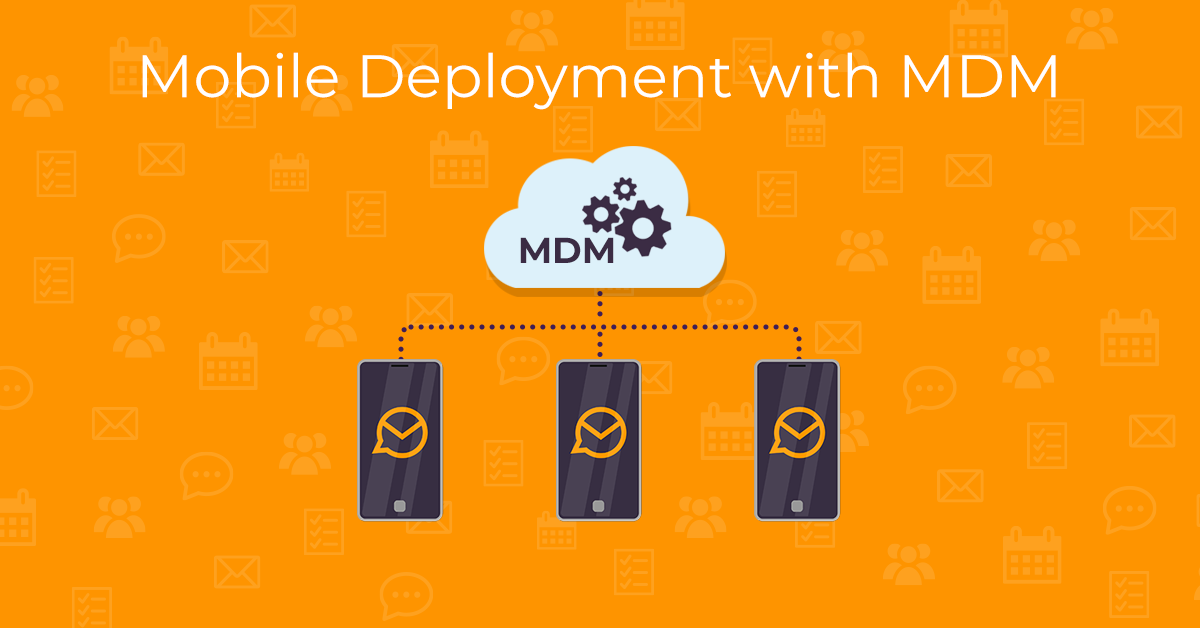
What does MDM allow you to manage?
Using an MDM or EMM solution, admins can remotely configure the mobile version of eM Client, apply company policies, and control important settings without relying on employees to set everything up themselves.
It’s a simpler way to manage the eM Client mobile app at scale and keep your organization’s configuration consistent from the start.
How does MDM work with eM Client?
To deploy eM Client across multiple devices with predefined settings, the company admin will use one of these tools depending on the platform:
| Platform |
Mechanism |
|
Android
|
Android Enterprise managed configurations (also known as app restrictions)
The app defines the available settings, which are then displayed in your MDM or EMM console.
|
|
iOS
|
Apple Managed App Configuration
Your MDM solution sends a configuration dictionary to the app using the standard com.apple.configuration.managed key.
|
Each of the settings is identified by a unique key. In the MDM/EMM console, the admin will enter a value for each key they want to configure. The MDM then sends those key-value pairs to the app, which reads them and automatically applies the corresponding settings.
What can managed configurations do?
Let’s take a look at what can be achieved with managed configurations.
The automatic account setup feature allows you to configure one or more accounts for users, meaning that:
users do not have to deal with the technical details of account setup
users can be blocked from adding other accounts beyond what is allowed by the admin
admin can limit which servers and identities users can connect to when manually added accounts are allowed
The admin can also stop users from accidentally changing advanced account settings, such as server and port settings, folder paths, or the option to edit per-account advanced parameters and prevent unnecessary technical issues. Or just define whether push notifications will be enabled for each account by default.
Besides that, other settings can be centralized as well, including whether users will be allowed to use artificial intelligence (AI) features.
Is the MDM configuration secure?
As mobile devices have become increasingly important in the workplace, so has the need to keep company data secure. Settings that help enforce security and data protection policies can play an important role.
These include:
mandatory password or PIN – including the minimum length or complexity of the passwords or specifying how long the app can remain in the background before it must be unlocked again
screen capture prevention – no screenshots or screen recordings can be taken within the app
clipboard clearing – the system clipboard is cleared when the user leaves the app, preventing them from copying data from the eM Client app into other apps
disabling attachments sharing – sharing via other apps or saving the files to the device storage
disabling moving/copying data between accounts
disabling printing
Once the settings are deployed through an MDM or EMM solution, eM Client automatically detects and applies any managed configuration on startup. Any preconfigured accounts are then created or updated automatically.
And if additional user input is needed – for example, entering a password or completing an OAuth sign-in – the app takes the user through the remaining steps in a streamlined setup wizard.
With Managed App Configurations, the eM Client mobile app can fit more easily into your organization’s existing IT management and security processes. From account setup to access restrictions and data protection, administrators can define the experience they want users to have while keeping important settings under centralized control.
Are you an IT admin?
Our team can send you the full MDM admin guide.