Working with multiple email accounts can challenge us to find new ways to
avoid losing track of which one we’re currently supposed to look at, whether
it's different professional and personal accounts or accounts for different
work projects.
That’s where the account groups can come in handy.
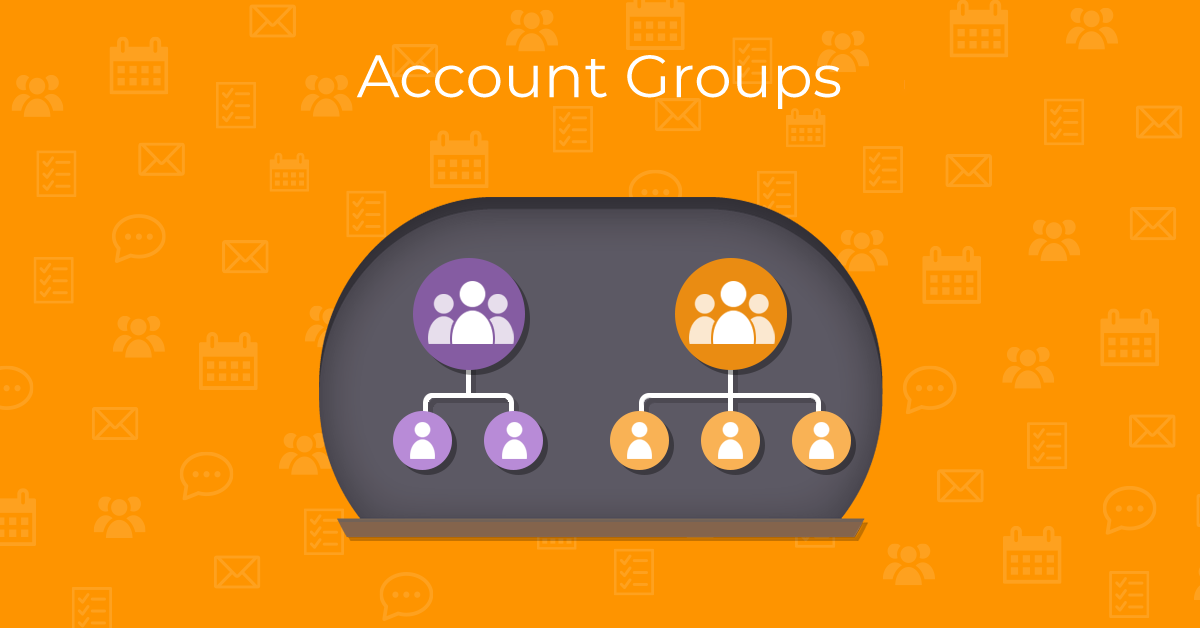
To create an account group, right-click any of your accounts in the left sidebar and select “Add account group” from the context menu:
In the next step, name your new account group using the pop-up that appears:
The newly created account group will appear in your sidebar:
Now you can easily move your accounts into the new account group by dragging and dropping them there.
Each group can be expanded and collapsed, keeping your workspace neat and clutter-free:
Clicking the account group name also lets you view the combined inbox for the email accounts located in this group. This combined folder works similarly to the global folder “All Inboxes” – but only for the accounts you chose to include in the account group.
Your account groups are not limited to just the email section – you will also find them in the sidebar of the calendar, contacts, tasks, and notes sections, depending on which services are available for each account.
If you need a more substantial separation of workflows, Profiles can be your next go-to solution – they give you the option to split your work into completely distinct databases.
Juggling diverse work projects or simply owning and managing multiple email accounts can become overwhelming. Account groups won’t make this task completely painless, but they can definitely make it easier.
New to eM Client?
Try it out! It's free and fabulous.
If you’re ready for more,
buy Personal or Business license
and enjoy:
And in the meantime, check out our
YouTube channel
for how-to videos.