eM Client offers an industry standard environment that is found on most mainstream email clients, such as MS Outlook. This tried and true layout is well-arranged, easy-to-use and intuitive.
This product's user interface consists of various sections:
Left side panel:
Menu, Search field and Toolbar:

Central panel:
At the top is the Menu and New button. From there, all the important functions can be accessed.
In the middle is the Search which you can use to lookup items.

Using the search bar, you can simply search for your emails. A list of several useful command tools will appear in the context menu when you type a question mark in the search bar.
Click on the pointing down arrow to bring up the context menu for search bar:
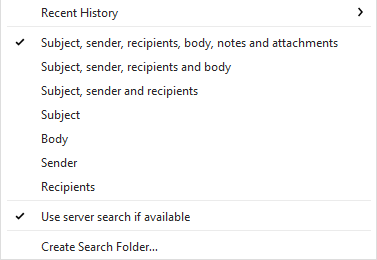
Here you can select, deselect or change area or areas that you want to use for your search.
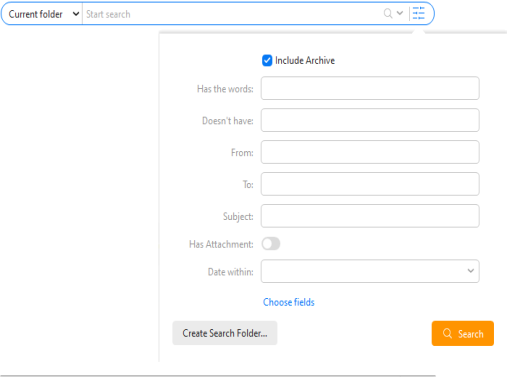
Next to the drop-down menu is the Advanced Search icon  - click it to open the Advanced search pop-up and quickly specify more details so you can find the messages you're looking for. You can also create Search Folders from this pop-up.
Also at the top is the Main Toolbar which allows you to quickly take actions.

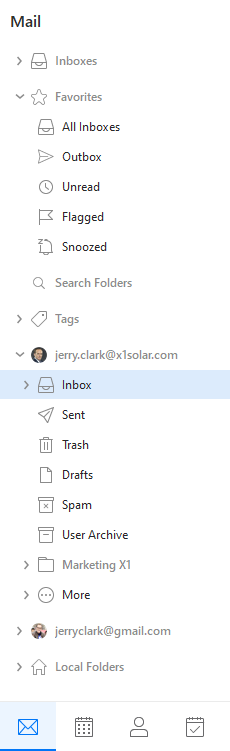
On the left side panel is the list of Accounts, Favorite folders , and Local folders and their folders/subfolders which you will use to navigate between all of your added accounts and saved data. This side panel is shown as the Mail View in the picture, but similar left side navigation panels occur for all the other services (Calendar, Contacts, Tasks, etc.) in eM Client as well.
The side panels contain icons and can be collapsed to save screen space!
If you have more than one account you can use Inboxes section above the favorite folders - this section will store each of your Inbox folders separately so you can check your new messages, but unlike with 'All Inboes' favorite folder you can keep the accounts separate. If you do not want these folders, you can hide them via the setting in Menu > Settings > General> Folders.
If you right-click on any folder (for example "Inbox") you will bring up the context menu, which gives you additional options.
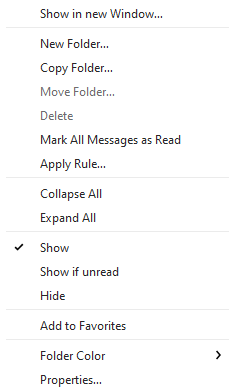
Show in new Window - This will open a new eM Client Window which is focused on the selected folder. Opening multiple windows in eM Client is useful for multi-tasking so you don’t need to switch back and forth between things in the application.
New Folder - creates a new folder
Rename - renames the folder
Copy Folder - copies the folder to another location/account
Move Folder - moves the folder and its contents to another location/account
Delete - deletes the folder and its contents
Mark All Message as Read - All messages in the folder will be marked as Read
Apply Rule - runs a chosen rule on that folder
Collapse All - will collapse the entire left side panel folder structure to save screen space
Show - the folder will be shown in the left side bar
Show if unread - serves for the situation when you do not want the particular folder to be displayed unless there are some unread messages. If there are none, the particular folder will be hidden under the More folder
Hide - the folder will be hidden under the More folder
Add to Favorites - the folder will be linked to the favorite folder
Folder Color - change the color of the folder, for Google accounts the color is taken from Labels in Menu>Tags, additional options on what to apply the color to are available in Folders settings section.
Properties - Gives more information on the folder and allows for additional options/settings for that specific folder
Navigation Panel
The Navigation Panel can be found in the lower left corner of eM Client and allows you to navigate to different functions of the eM Client application. Based on the size of the left side panel and which customization options you chose, the display will show different icons representing each section. If an icon for a section doesn’t appear due to limited space, it still always be accessible by clicking on the three dots
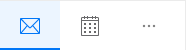
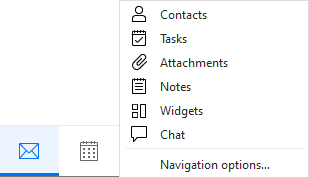
The Mail icon is used for navigating among your email folders and managing mail.
The Calendar icon provides you with access to your Calendar events.
The Contacts icon provides you with access to your Contacts.
The Tasks icon provides you with access to your Tasks.
The Attachments icon can be used to access your Attachments.
The Notes icon can be used to access your Notes.
The Widgets icon can be used to access your Widgets.
The Chat icon can be used to access your Chats.
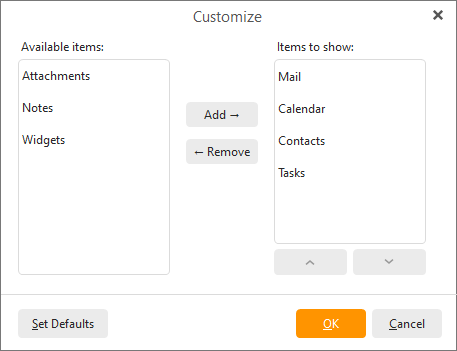
You can add or remove any of these items by right-clicking them and selecting the Customize Navigation Panel option.
The Show icons only option will hide the text of the buttons, so you can fit more features on the toolbar. You can hover over the buttons to have the title pop up.
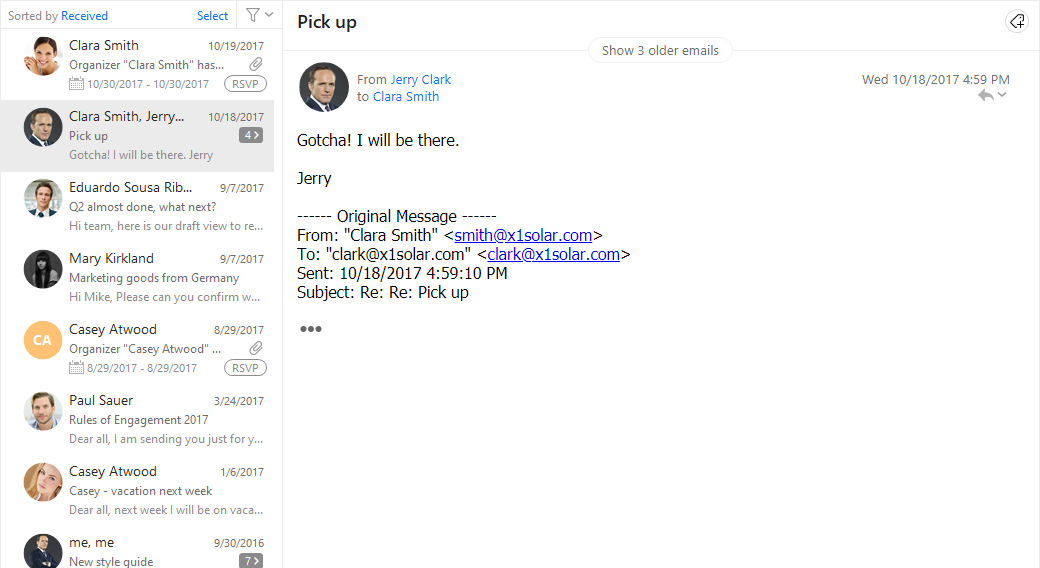
The central panel of the interface can display various contents according to which navigational bookmark you are currently working under in the left vertical panel. In this panel you can find the contents of your emails, your calendar events, your tasks or your contact details.
Most sections include a Quick filter in the top right corner, find more about Quick filters here.
Right Sidebar
On the right hand side there is the Sidebar. It is a powerful tool in your communication toolbox. It provides dynamic contents which will help you manage your contacts, send instant messages, and make sense of your email communication. For a full description of what you can do with the Sidebar click here.
Context menu
The Context Menu is a flexible and useful way to interact with the contents of the application. It is useful because you can depend upon it to provide you with the most appropriate options according to where you are in the program and what you are currently doing.
Context menu is accessed simply by right-clicking on any desired item (email, calendar event, task etc.). A simple menu will pop up, contained within is a list of all the actions you can perform on the selected item. In the Context Menu left-click an action to select it.
The content of the Context menu changes according to the type of the selected item or the location of your right-click. For instance email messages will have different options in their context menu than calendar events. Right click on an email would give you the option to reply to the email, whereas right-click on a calendar event will give you the option to edit the event.
Grouping
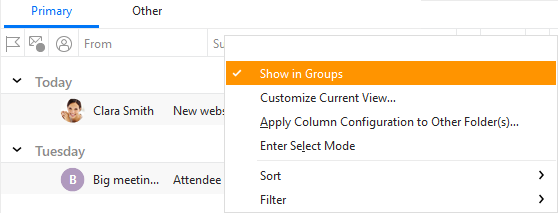
This product allows you to group your items (messages, contacts etc.) in the central panel according to the column that is currently being used for sorting. This feature was designed to make navigation easier for you. It is enabled by default, but if you wish to disable it, just right-click the column header and choose Show in Groups from the context menu (the tick next to this option will have disappeared when you right-click the column headers again).
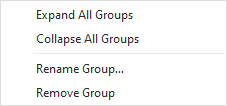
You can easily expand / collapse all groups by right-clicking the group header and selecting Expand All Groups or Collapse All Groups from the context menu.
Grouping also works for your Chat contacts listed in the Sidebar.
Columns
You can configure your columns by clicking Columns Configuration - you will see the following window:
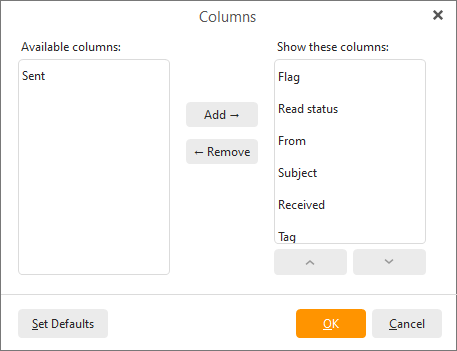
You can add or remove any of the items to make your view more efficient for you. For example you might want to keep the contact avatar or message Preview to quickly see who the message is from and what's it about or you might want to remove them to save up space and see more messages at once in your message list, since the lines in the list will be thinner.
You can choose to have all of these columns visible:
If you click on Customize Current View, you will be redirected to the Mail tab of the Appearance section in Settings, where you can customize the appearance of your Lists settings.
Once you are happy with your setup, you can easily apply your column configuration also to the other folders, just right-click the column header, choose Apply Column Configuration to Other Folders... from the context menu and then select the folders to which you would like the column configuration to be applied.