
The Search bar in eM Client is located in the middle of the top title bar, above the toolbar:
Using the search bar, you can simply search for your emails (or other items in other sections of the app). A list of several useful command tools will appear in the context menu when you type a question mark in the search bar.
Click inside the search bar to view the folder selection on the left and the settings for search and Advanced search button on the right side.
If you performed some searches before, clicking inside the search field will bring up search history so you can repeat your recent search.

Folder options on the left - this section dictates which actual folders the search will be performed within:
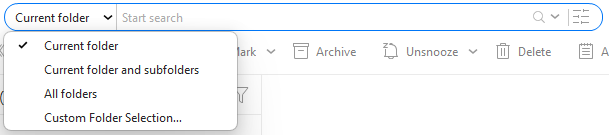
Click on the pointing down arrow to bring up the context menu for search bar:
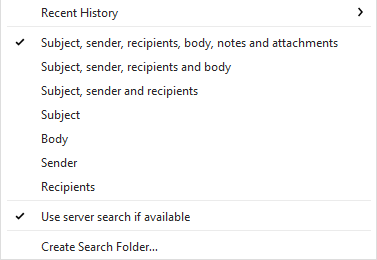
Recent history - view the recent searches.
Part of the message - this section dictates which actual part of the message will be searched within, so for example if you set to search in Subject, you will only search inside the subject line and not other parts of the message like sender address or inside the attached files. To search inside attachments and message bodies you need to have the messages downloaded for offline use or use server-side search.
Use server search if available -this option means that if the account has server-side search available, eM Client will execute the search on the server instead of locally inside the eM Client app. Server-side search can be used for all Exchange accounts and also IMAP accounts whose servers support this feature (for example Google). This way you can get more complex results quicker without having to download your messages for offline use. IMAP servers need to use RFC 7377 and RFC 6203 extensions for server search to work.
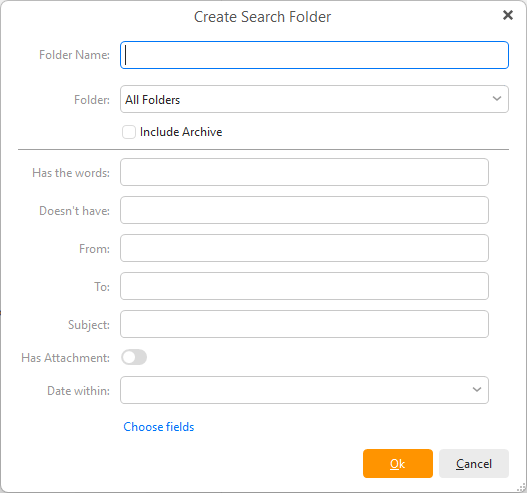
Create search folder.. - create a new Search folder which is a set search parameter that stays in your folder list, which can be useful for commonly repeated searches.
Keywords are quick way to specify your search without needing to use the Advanced search interface. You can use the ? symbol to have the search bar list all the keywords options you can use.
Then just use the keyword, then colon : and then the words or argument that can apply (for example from:johnwill look for messages where the sender has name set as john or john is part of the email address).
Using numerous keywords and searched terms one after another will work as AND argument between them (from:john read:no will work for messages received from sender john and marked Unread).
OR argument inside single keyword can be done simply with comma , between the arguments (from:john,clara will list messages received from john or from clara).
OR argument between different keywords can be achieved with curly brackets {} and space between the keywords ({from:john subject:party}will look for messages either from john or those with word party in the subject line).
NOT argument can be used to leave out results with specific words and can be used to negate specific searched term or even whole keyword using the minus/dash - (google -alert will look for word google in all sections of the messages and leave out those that include the word alert; from: google subject:-alert or from:google -subject:alert can specify messages from google, but alert cannot be in subject).
Mail
Calendar
Contacts
Tasks
Attachments
Notes
Chat - search in chat is available for Slack, MS Teams and Rocket.Chat at this time