An email attachment is a computer file sent along with an email message. One or more files can be attached to any email message, and be sent along with it to the recipient. This is typically used as a simple method to share documents and images. Attachments can also be added to other processes in eM Client, such as Calendar events, Notes or Tasks.
The dedicated Attachment View is a section similar to the Calendar View or Contacts View, where you can centrally manage all of your attachments you’ve sent, received, or uploaded in eM Client.
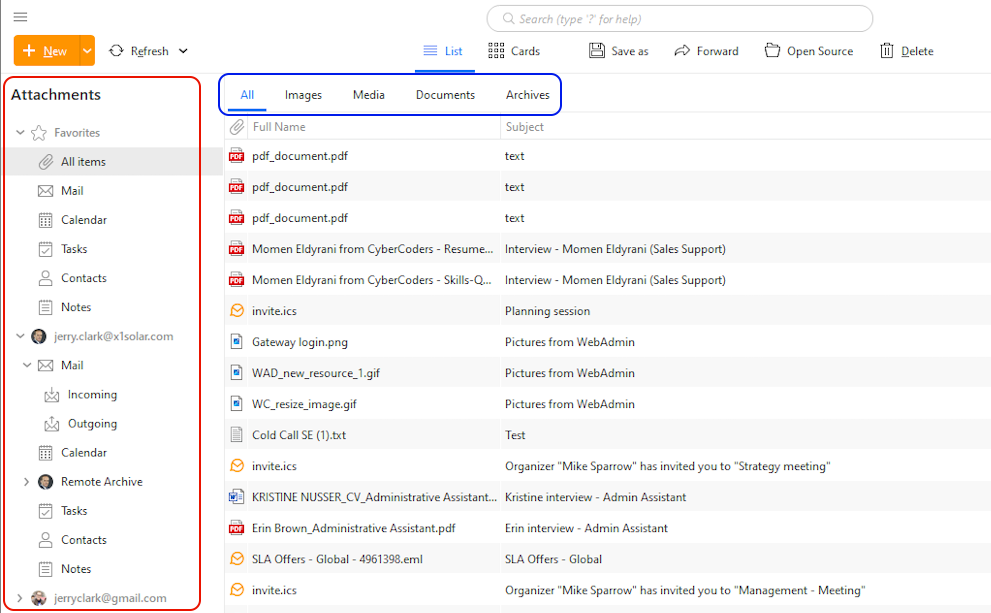
Like the other views in eM Client, you navigate in the Attachment View primarily through the account folders on the left side panel. From there you can filter if you want to see attachments from all your accounts in eM Client, or if you only want to look for attachments from specific accounts or services.
Additionally, you can filter the type of attachments which are displayed by clicking on the options highlighted in the blue box below
All - displays all types of file attachments
Images - only displays picture files such as .png, .jpg, or .gif
Media - only displays video or sounds files such as .mp3, .mp4, .webm or .wav
Documents - displays document files such as .doc, .xls, .pdf, .txt, .log or .rtf
Archives - displays compressed files like .zip
After narrowing down the chosen account, service and file type, you can search further for a specific attachment using the search bar in the middle above the toolbar.
The search also looks through the text within your attached document files. This makes it much easier to find a document, even if you don’t remember its name.
There are 6 options in the main toolbar at the top of the Attachment View. Like any top toolbar, you can right-click on it in order to customize the displayed options and their order.

List - Changes your display of attachments to the list style
Cards - Changes your display of attachments to the card style
Save as - Saves the chosen attachment locally on your computer
Forward - Creates a new email with the chosen attachment already attached
Open Source - Opens a window in eM Client where the chosen attachment comes from, such as the email where the attachment was received.
Delete - Deletes the chosen attachment