eM Client enables you to view your messages in three different conversation modes. To set particular conversation mode go to Menu > View > Conversations and here you will be able to choose from three different modes: Show Conversations in All Views, Show Conversations in Message Details Only, Disable Conversations.
Below you can choose if new messages should be shown on bottom(default, that way you can read messages chronologically from the top to bottom) or on top (older messages are below).
Lets explore the different modes one by one:
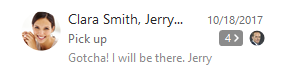
If you select this option you will be able to see conversations in the left panel. Every conversation will also display a number that indicates number of individual messages contained.
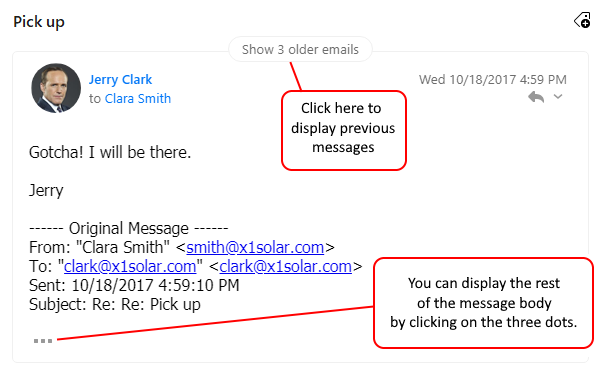
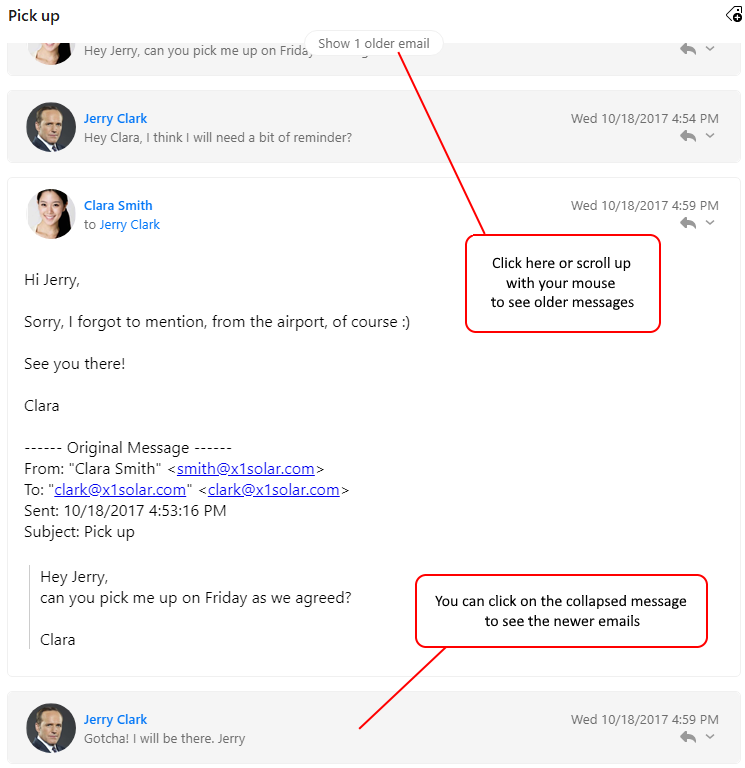
If you click on the particular conversation all the messages contained will be displayed in the right panel. If there exist more unread messages in the conversation, the most up-to-date unread message will be selected and displayed as first. In case there is just a single unread message, it will be that message which will be selected and displayed. The last scenario is that all messages in conversation are marked as read. In such case the most up-to-date message will be displayed. Also note that those messages that are unread will be expanded (rest collapsed). If there are no unread messages then most up-to-date message will be expanded (rest collapsed).
You can easily view previews of the messages in the conversation:
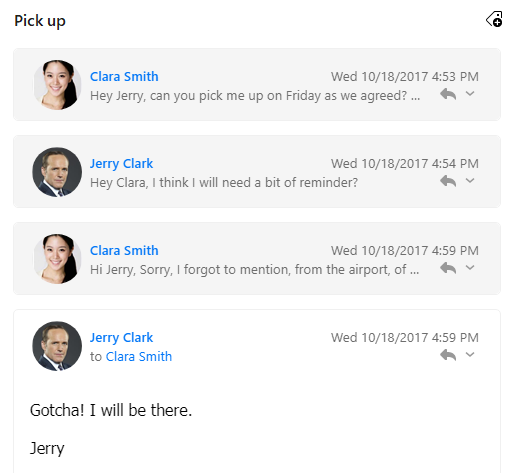
You can click the message counter to show the Conversations as a Thread. Threads are a feature available in the Pro, Personal or Business version of the application.
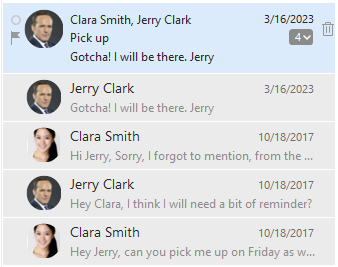
The Threads feature allows you to expand your conversations to get quicker recall of the context of conversation or to work with a particular email.
The first item in the thread contains the avatar of the person you are talking to, subject of the conversation and preview of the last email. From this view you can reply to the specific email, flag it or just open it.
To get more context of the conversation you can enable 2 or 3 lines message preview in Menu > Settings > Mail > Read > Message List section > Message preview.
If you select this option you will be able to see all inbox messages ordered according to the date of receiving. If you select any message in the right panel and it is included in a conversation then all messages from the particular conversation will be displayed. If there will be more unread messages in the conversation then all of them will be expanded. If all conversation messages are read the most up-to-date message will expand.
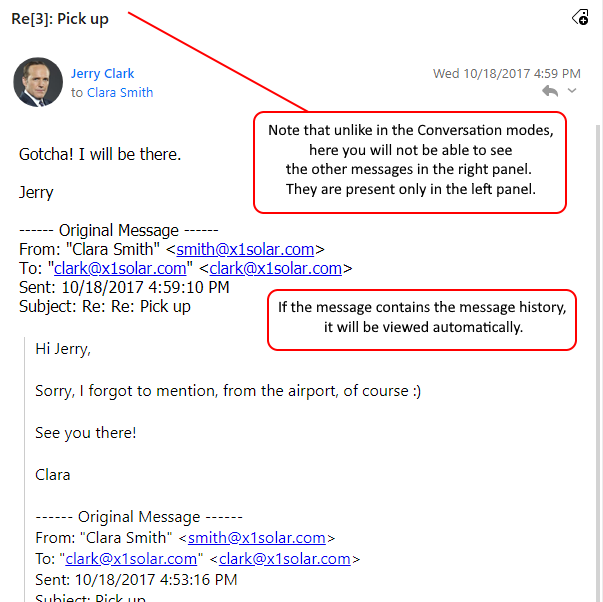
If you select this option then conversations will not be applied and you will encounter what you might have been familiar with if you have been using eM Client before the version 7: in left panel the messages are ordered according to the Received date and what is displayed in the right panel is always only the selected message with the previous conversation displayed in classic textual form (see example below).
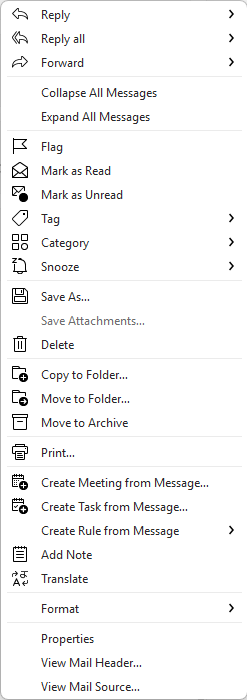
By clicking on the little down-pointing arrow on the right, you will bring up a menu which relates to the displayed message only. Therefore in order to reply to, forward or otherwise interact with a particular message in a conversation you have to select the appropriate action from the list of this drop-down menu: