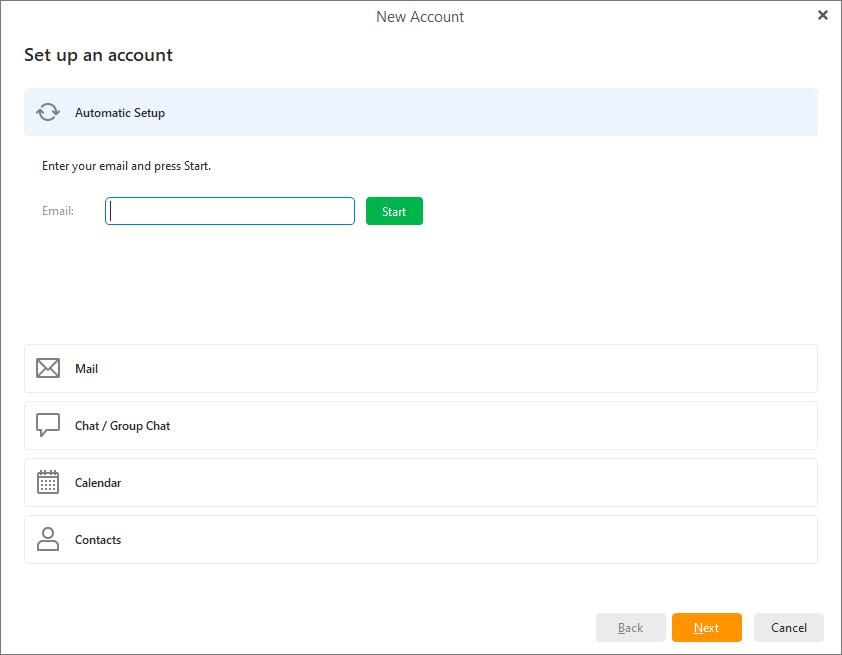
If no existing accounts are detected, the account wizard will appear automatically, as you can see in the following picture.
Otherwise, the path to create a new account is Menu -> Accounts and then click on New account... button. 
To add a new account click on Menu in the top left and in the drop-down menu select Accounts. You will see the following account management window.
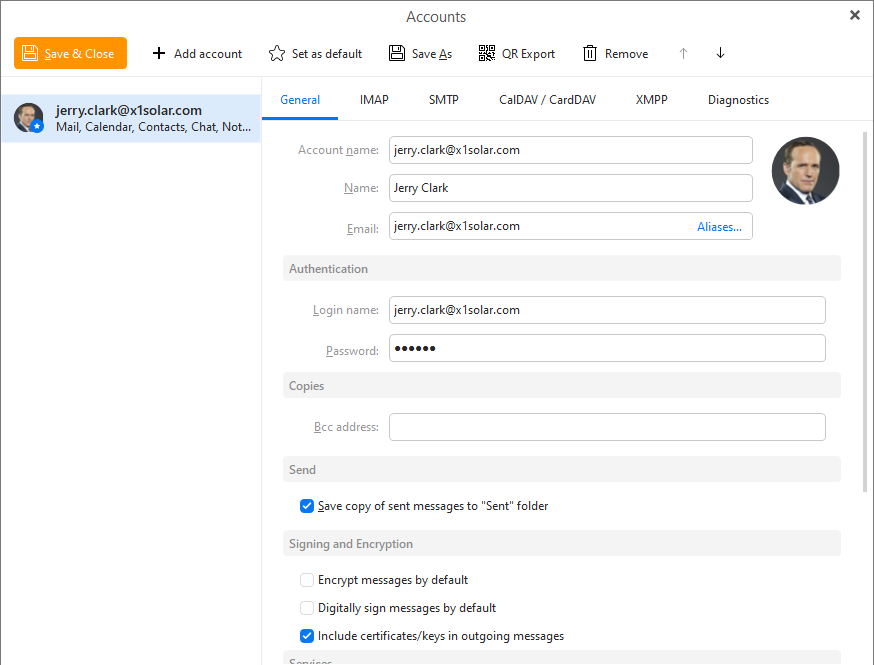
Here you can create new accounts, delete existing accounts or select your default account.
Please note the two arrows in the Accounts window toolbar. These can change the order of accounts which will affect the order of the folders in the main window on the left.
Click on +Add account to create an email, calendar, contacts, chat or any other account. You can read more about creating new accounts in the section: Create New Account .
On the right side of your account details you can see an avatar. Account avatars will help you determine which email account your messages belong to in mixed views or search results. You can also use them for quick navigation when using minimized left pane.
For more details on how to change the avatar please go to Edit Account .
To delete an account, select the account you wish to delete and click on Remove account button  . You will be prompted to confirm the deletion.
This action can endanger your data in case of POP accounts.
POP protocol downloads messages from your server into your device and deletes them from the server - this means that deleting this account from your device might delete the only copy of your messages.
We suggest making a backup or exporting your messages before deleting a POP account.
IMAP and Exchange Web Services accounts synchronize data with the mail server, removing these accounts is therefor safe.
Select the account you wish to be set as your default account and click on Set as default  . The default account will be active when the application starts.
Default account will be used when a specific account cannot be detected for use. This means the Default account will be applied to new messages, contacts, events, etc. when the focus is set in Smart folders or Local folders.
If you default account does not have its own Calendar and Contacts services you can specify default folders in the General tab of the Default account.